The Inventory Control lets you manage warehouse bins and their contents. You can view bin details, recount products, move items between bins, rename bins, and perform other bin operations.
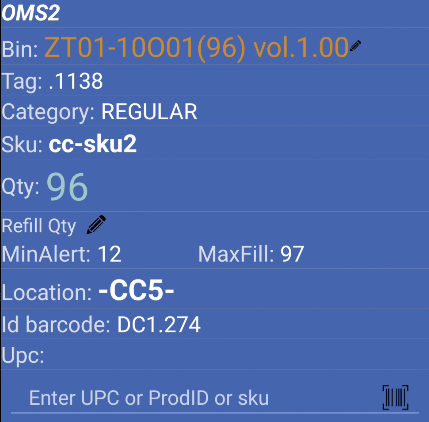
Enter or scan a Bin, Product ID, UPC, SKU, or Location to view bin details. The app shows product information and available operations for that bin.
Inventory Control is a feature that helps you manage warehouse storage locations (bins) and their contents. You can view what’s in each bin, update quantities, move products, and perform various bin operations.
Main purpose:
View bin contents and details
Recount products in bins
Move products between bins
Rename bins
Create new bins
Update bin quantities and settings
Manage bin categories and locations
See what products are in each bin, quantities, locations, and other important information. Know your inventory at a glance.
Recount products when quantities don’t match records. Keep your inventory accurate with easy recounting.
Move products between bins when needed. Reorganize inventory quickly and efficiently.
Rename bins, change categories, update locations, and manage bin information. Keep your warehouse organized.
Open the Main Menu
From the login screen, sign in with your credentials. You’ll see the main menu with all available features.
Select Inventory Control
Tap the Inventory Control icon in the main menu. The app checks your user permissions and opens the Inventory Control screen.
Search for a Bin
Enter or scan a Bin, Product ID, UPC, SKU, or Location to view bin details and available operations.
The Inventory Control screen shows:
Main elements:
Search field : Enter or scan Bin, Product ID, UPC, SKU, or LocationSend button : Process your search after entering bin informationBin details view : Shows product information and available operationsCamera icon : Tap to use the device camera for barcode scanning
Information shown for each bin:
Bin name
Product details (SKU, Product ID)
Quantity in bin
Quantity processing (if any)
Company/Account name
Location
Category
Bin Tag
LPN (License Plate Number) if applicable
Lot and expiration date
UOM (Unit of Measure)
Product images (if available)
When you view a bin, you can perform these operations:
What it shows:
Current quantities
Product information
Location and category
Processing status
How to use:
Enter or scan a bin to see its details
View all products and their quantities
See bin location and category information
What it does:
Updates product quantities in a bin
Records recount reason and type (if required)
Updates inventory records
When to use:
When quantities don’t match records
After physical inventory checks
When correcting inventory errors
Requirements:
User must have recount permissions
Product must not be serialized (serials not supported)
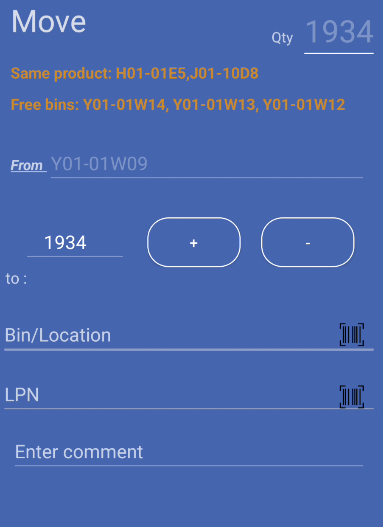
What it does:
Moves products from one bin to another
Updates both source and destination bins
Handles quantity changes during moves
How to use:
View the source bin
Enter destination bin or LPN
Enter quantity to move
Confirm the move
Note: The app verifies bins are available and locations are valid before moving.
What it does:
Updates minimum and maximum quantities for a bin
Sets refill thresholds
Helps manage bin capacity
When to use:
Setting up new bins
Adjusting refill levels
Managing bin capacity
What it does:
Swaps a bin’s category to match the location category
Enables bin to use the location’s category
Updates bin classification to match location
When to use:
When bin category doesn’t match location category
Reorganizing bin categories to match locations
Enabling bins to use location categories
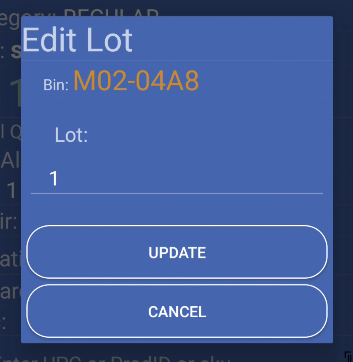
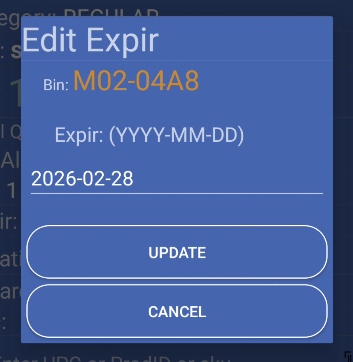
What it does:
Updates lot numbers and expiration dates
Changes product lot information
Updates inventory records
When to use:
Correcting lot information
Updating expiration dates
Managing product lots
What it does:
Prepares bin information for printing
Generates bin labels or reports
Marks bin as ready to print
When to use:
Creating bin labels
Printing bin information
Generating reports
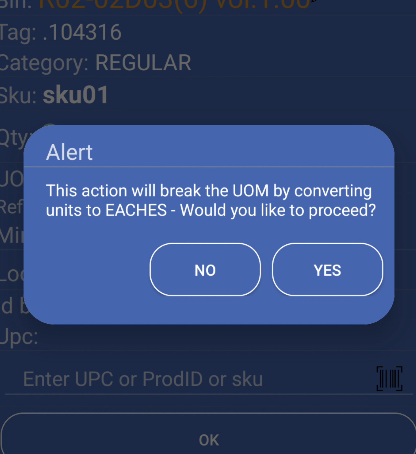
What it does:
Divides units of measure
Converts between UOMs
Updates quantities accordingly
When to use:
Converting product units
Breaking down larger units
Managing unit conversions
The inventory control process follows these steps:
Search for bin : Enter or scan Bin, Product ID, UPC, SKU, or LocationView bin details : See all products and information in the binChoose operation : Select the operation you want to performComplete operation : Follow on-screen instructionsConfirm changes : Verify and confirm your changesView results : See updated bin information
When viewing a bin, you see:
Product list with quantities
Location and category
Processing status
Available operations
Product images (if available)
Work with locations:
View bins by location
Move bins to new locations
Verify location compatibility
Handle location changes
Manage LPNs (License Plate Numbers):
View LPNs in bins
Move products using LPNs
Handle LPN changes
Verify LPN locations
Always check bin details before making changes. Make sure you’re working with the correct bin and product.
Scan bins and products for faster work. Scanning is more accurate than typing codes manually.
Verify locations when moving bins. Make sure destination locations are correct and compatible.
Provide reason and type when recounting (if required). This helps track why quantities changed.
Next Steps: