
View Bin Details
See what products are in each bin, quantities, locations, and other important information. Know your inventory at a glance.
The Inventory Control lets you manage warehouse bins and their contents. You can view bin details, recount products, move items between bins, rename bins, and perform other bin operations.

Inventory Control is a feature that helps you manage warehouse storage locations (bins) and their contents. You can view what’s in each bin, update quantities, move products, and perform various bin operations.
Main purpose:
See what products are in each bin, quantities, locations, and other important information. Know your inventory at a glance.
Recount products when quantities don’t match records. Keep your inventory accurate with easy recounting.
Move products between bins when needed. Reorganize inventory quickly and efficiently.
Rename bins, change categories, update locations, and manage bin information. Keep your warehouse organized.
Open the Main Menu
From the login screen, sign in with your credentials. You’ll see the main menu with all available features.
Select Inventory Control
Tap the Inventory Control icon in the main menu. The app checks your user permissions and opens the Inventory Control screen.
Search for a Bin
Enter or scan a Bin, Product ID, UPC, SKU, or Location to view bin details and available operations.
The Inventory Control screen shows:
Main elements:
Information shown for each bin:
When you view a bin, you can perform these operations:
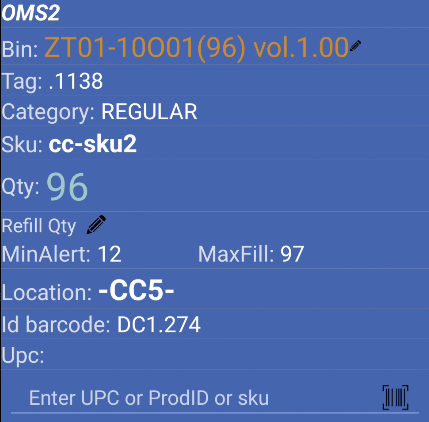
What it shows:
How to use:

What it does:
When to use:
Requirements:
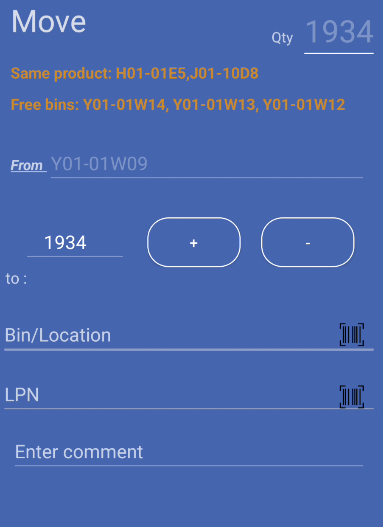
What it does:
How to use:
Note: The app verifies bins are available and locations are valid before moving.

What it does:
When to use:

What it does:
When to use:
Move and Swap both change where inventory lives, but they solve different problems. Use Move when you need to transfer a quantity of product. Use Swap when you need to relocate the bin (or its assignment) to another bin or location and align it with the location category.
| Move | Swap | |
|---|---|---|
| What changes | A quantity of the SKU moves from the source bin to a destination bin or LPN | The bin is moved or renamed to a new bin or location; category is aligned with the destination |
| Typical input | Destination in To, amount in To Qty (plus/minus as needed) | Destination bin or location in To; confirmation asks about swap with the location category |
| Partial transfer | Yes—you move only the quantity you enter | No—this is not the same “move X units” flow as Move |
| Same SKU in several bins | You work from the bin you opened | If the same product appears in multiple bins, you may see Swap from… to pick the source bin |
| New destination | The app checks bins and locations; you can target an LPN for shipping flows | If the SKU is not already at that location, you may get a prompt to proceed; creating a bin at the destination can ask for volume |
Examples — Move
WIDGET-01 in bin A-12-03 but only need 25 in the pick face: open A-12-03, tap Move, set To to PICK-04 and To Qty to 25. The source bin keeps the remaining quantity.Examples — Swap
Note: For step-by-step screens and dialogs (including Swap from… and category confirmation), see Inventory Control operations.
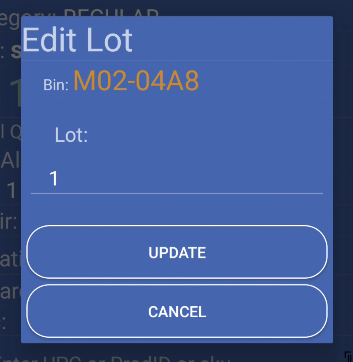
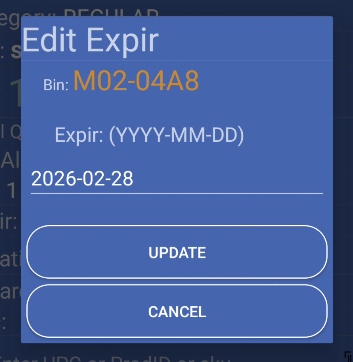
What it does:
When to use:
What it does:
When to use:
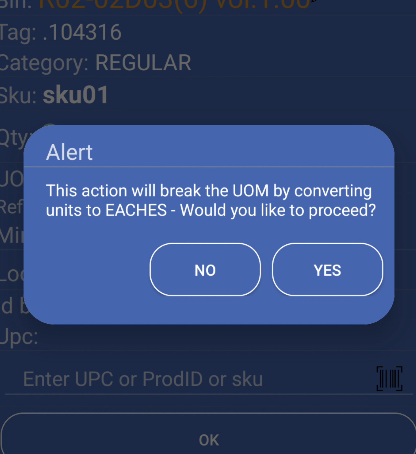
What it does:
When to use:
The inventory control process follows these steps:
When viewing a bin, you see:
Work with locations:
Manage LPNs (License Plate Numbers):
Always check bin details before making changes. Make sure you’re working with the correct bin and product.
Scan bins and products for faster work. Scanning is more accurate than typing codes manually.
Verify locations when moving bins. Make sure destination locations are correct and compatible.
Provide reason and type when recounting (if required). This helps track why quantities changed.
Next Steps: