
Skip to content

Blind Count Overview

The Blind Count module lets you count inventory in bins without seeing the expected quantity first. You enter or scan a bin, count the items physically present, and then verify your count against the system quantity. If there’s a discrepancy, you can update the inventory with a recount request that includes a reason and count type.
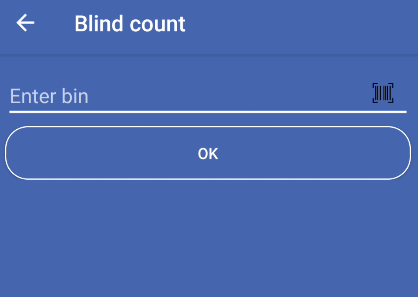
This feature helps maintain accurate inventory records by allowing warehouse staff to perform unbiased counts without being influenced by the expected quantity shown in the system.

Unbiased counting

Count items without seeing expected quantities first, ensuring accurate and honest inventory counts.

Discrepancy detection

Automatically detect differences between physical count and system quantity, then update inventory accordingly.

UOM support

Support for products with Unit of Measure (UOM), allowing you to count in different measurement units.

Location-based bins

Search for bins by location when multiple bins exist at the same location.

Scanner integration

Use Bluetooth scanner or camera to scan bin codes and product identifiers quickly.

Reason tracking

Record reasons and count types when updating inventory, providing audit trail for discrepancies.

  1. Open Blind Count

    From the main menu, select Blind Count. The screen shows a text field for entering a bin code.

  2. Enter or scan bin

    Type the bin code manually or scan it using:

    • Bluetooth scanner: Scan the bin code directly
    • Camera scanner: Tap the scanner icon next to the field to use the camera
    • Keyboard: Type the bin code manually
  3. View bin details

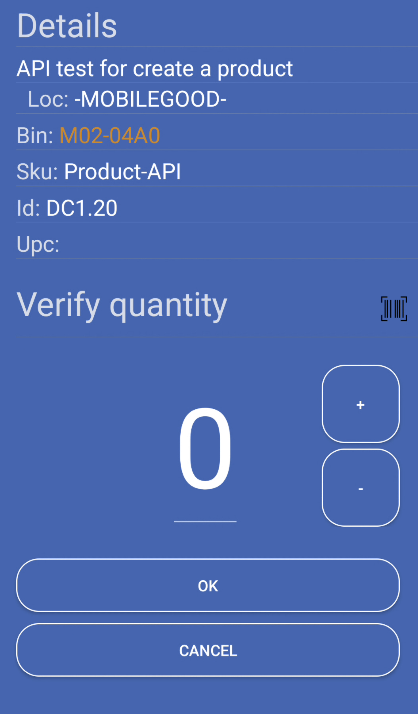
    After entering the bin, a dialog opens showing all bin information:

    • Description
    • Bin code
    • SKU
    • Product ID
    • UPC
    • Location (if available)
    • LPN (if available)
    • Current quantity (shown after counting)
    • UOM options (if product uses Unit of Measure)
  4. Count the items

    Physically count the items in the bin. You can adjust the count using:

    • + button: Increase the count by 1
    • - button: Decrease the count by 1
    • Scanner: Scan product SKU, UPC, Product ID, or bin code to increment count
    • Direct entry: Type the quantity directly in the count field
  5. Verify quantity

    Tap OK to verify your count against the system quantity. The app compares your count with the expected quantity.

  6. Handle the result

    • If counts match: The dialog closes and you can count another bin
    • If counts don’t match: An alert appears with options:
      • Retry: Go back and recount
      • Cancel: Close without updating
      • Update: Update inventory with your count (requires reason and type)
  7. Update inventory (if needed)

    If you choose Update, select:

    • Count Type: Type of count being performed
    • Reason: Reason for the discrepancy

    Then confirm to submit the recount request.
Located at the top of the screen:

  • Text field: Enter bin code manually
  • Scanner icon: Tap to use camera scanner
  • Hint: “Enter bin” (changes to “Scann or enter bin” when Bluetooth scanner is connected)
  • Function: Processes the entered bin code and loads bin details
  • When to use: After entering or scanning a bin code
  • Requirements: Bin field must not be empty

When you enter a bin, a dialog opens showing:

  • Description: Product description (may include HTML formatting)
  • Bin: Bin code (shows “(UOM)” if product uses Unit of Measure)
  • SKU: Product SKU code
  • Product ID: Product identifier
  • UPC: Universal Product Code
  • Location: Physical location (shown if available)
  • LPN: License Plate Number (shown if available)
  • Current quantity: System quantity (shown after verification)
  • UOM spinner: Dropdown to select Unit of Measure (if product supports UOM)
  • UOM label: Shows “UOM” when product uses Unit of Measure
  • Count field: Large number display showing your current count
  • + button: Increase count by 1
  • - button: Decrease count by 1 (cannot go below 0)
  • Scanner icon: Scan products to increment count automatically
  • OK: Verify your count against system quantity
  • Cancel: Close dialog without saving

Use the + and - buttons to adjust the count:

  • Tap + to increase by 1
  • Tap - to decrease by 1
  • Count cannot go below 0

Scan product identifiers to increment count automatically:

  • Scan the SKU code
  • Scan the UPC code
  • Scan the Product ID
  • Scan the Bin code

Each scan increments the count by 1. The scanner only accepts codes that match the current bin’s product.

Type the quantity directly in the count field:

  • Tap the count field
  • Enter the number using the keyboard
  • The count updates immediately

When you tap OK to verify:

If your count matches the system quantity:

  • Dialog closes automatically
  • You can proceed to count another bin
  • No inventory update is needed

If your count doesn’t match the system quantity:

  • An alert dialog appears
  • Shows message: “Quantity entered does not match bin quantity”
  • Provides three options:
    • Retry: Return to counting dialog to recount
    • Cancel: Close without updating inventory
    • Update: Proceed with inventory update

When you choose Update after a quantity mismatch:

  • Permissions: You must have recount permissions (Users.recount must equal “1”)
  • No processing quantities: Bin cannot have quantities currently in processing
  • Not serialized: Product cannot be serialized (serialized products not supported)
  • Reason and Type: May be required depending on warehouse settings

If required by warehouse settings:

  • Count Type: Select the type of count being performed (e.g., Cycle Count, Physical Count)
  • Reason: Select the reason for the discrepancy (e.g., Damaged, Misplaced, Theft)

Both fields may be required or optional depending on warehouse configuration.

  1. Select Count Type (if required)
  2. Select Reason (if required)
  3. Confirm the update
  4. The recount request is submitted to the server
  5. A confirmation message appears: “Your recount request is being processed in the background. After a few minutes, scan the destination bin to check the status”

Some products support multiple Units of Measure:

  • UOM Spinner: Dropdown showing available UOM options
  • Format: Shows “UOM Name - UF: Factor” (e.g., “Case - UF: 12”)
  • Factor: Conversion factor between UOM and base unit
  • Quantity calculation: Count is multiplied by UOM factor when verifying
  1. If product supports UOM, the spinner appears in the details dialog
  2. Select desired UOM from the dropdown
  3. Count items in the selected UOM
  4. System automatically converts to base units for verification
  5. If UOM is changed, count resets to 0
  • UOM spinner is disabled if bin has quantities in processing
  • Changing UOM resets the count to 0
  • Quantity verification accounts for UOM factor automatically

If you enter a location code (format: XXX-XXX-XXX), the app shows all bins at that location:
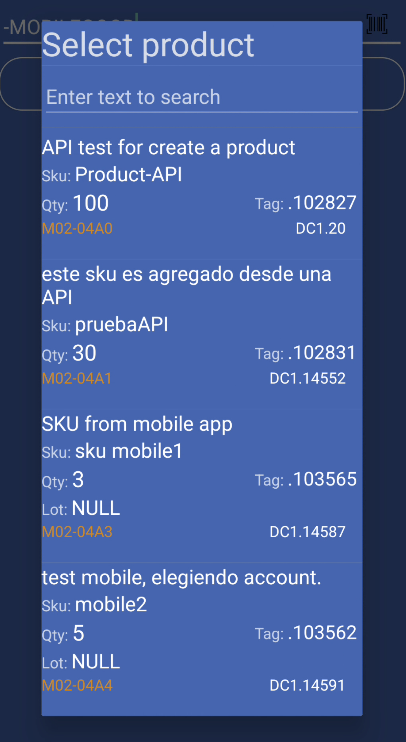
  • Format: Location codes contain multiple dashes (e.g., “A-1-2”)
  • Detection: App automatically detects location format
  • Bin list: Shows all bins at the location in a searchable list
  1. Enter location code (or scan it)
  2. Dialog opens showing all bins at that location
  3. Search by bin, description, product ID, or SKU
  4. Tap a bin from the list to select it
  5. Bin details dialog opens for the selected bin

Count carefully

Take your time to count accurately. Use the scanner to count products automatically when possible to reduce errors.

Use scanner for counting

Scan product codes (SKU, UPC, Product ID) to increment count automatically. This is faster and more accurate than manual counting.

Verify before updating

Double-check your count before tapping OK. Once you update inventory, the change is processed in the background.

Select correct UOM

If the product uses UOM, make sure you select the correct unit of measure before counting. Changing UOM resets your count.

Provide accurate reasons

When updating inventory, select appropriate count type and reason. This helps track why discrepancies occurred.

Check processing status

If a bin has quantities in processing, you cannot update it. Wait until processing is complete or contact your supervisor.

Problem: After entering a bin, you see “Error, try again please” or “No connection to internet”.

Solutions:

  • Verify you entered the correct bin code
  • Check your internet connection
  • Try scanning the bin code instead of typing
  • If using location format, make sure the location code is correct

Problem: Tapping + or - buttons doesn’t change the count.

Solutions:

  • Make sure the bin details dialog is open
  • Verify you’re tapping the correct buttons (+ and -)
  • Try typing the count directly in the field
  • Close and reopen the bin details dialog

Problem: Scanning products doesn’t increase the count.

Solutions:

  • Verify you’re scanning codes that match the current bin’s product (SKU, UPC, Product ID, or Bin)
  • Make sure the bin details dialog is open
  • Check that Bluetooth scanner is connected (if using Bluetooth)
  • Try scanning a different product identifier

Problem: The Update option doesn’t appear or is disabled.

Solutions:

  • Verify you have recount permissions
  • Check that the bin doesn’t have quantities in processing
  • Ensure the product is not serialized (serialized products cannot be updated)
  • Contact your supervisor if permissions are needed

Problem: The UOM dropdown is grayed out and you can’t select a different UOM.

Solution: This is normal. The UOM spinner is disabled when the bin has quantities currently in processing. Wait until processing completes or contact your supervisor.

Problem: You see “Reason and Type are required” when trying to update.

Solutions:

  • Select a Count Type from the dropdown (cannot be the first “Select” option)
  • Select a Reason from the dropdown (cannot be the first “Select” option)
  • Both fields are required when warehouse settings require them
  • Make sure you’ve selected actual options, not the placeholder “Select” option

Problem: After entering a location, you see a list of bins instead of bin details.

Solution: This is normal. When you enter a location code, the app shows all bins at that location. Tap the specific bin you want to count from the list.

Problem: After updating, you see “Your recount request is being processed in the background”.

Solution: This is normal. The recount is submitted to the server and processed asynchronously. Wait a few minutes, then scan the bin again to check if the update was applied.

Activity: BlindCount.java
Layout: blind_count_view.xml
Details Layout: blind_details.xml
Verify Layout: blind_verify_qty.xml
Toolbar Title: “Blind count”
API Services:

  • ConnectToDataBaseServer.java - Bin details
  • ConnecToDataBaServerRecount.java - Recount operations
  • ConnectToDataBaseServerGetBinLocation.java - Location-based bin search
  • ConnectToDataBaseServerGetUOM.java - UOM data
  • ConnectToDataBaseServerReason.java - Reason and type options

The module connects to server endpoints for bin details and recount operations. Local SQLite database may be used for caching.