This guide walks you through the complete cycle count process from viewing bins to updating inventory. Follow these steps to verify inventory accuracy and maintain correct warehouse records.
The app shows bins with zero or low quantities by default. Tap a bin to see details, verify the count, and tap “Done” to mark it as counted. Select multiple bins and tap “UPDATE SERVER” to save all counts at once.
The cycle count process follows these main steps:
View bins - See bins with zero or low quantitiesFilter bins - Use filters to find specific bins by quantity or accountSearch bins - Find specific bins by nameSelect bins - Choose bins to count (single or multiple)View bin details - See complete information about each binVerify count - Check actual quantity matches system recordsMark as done - Confirm bin is counted correctlyUpdate server - Save count results to the server
Open Cycle Count
From the main menu, tap the Cycle Count icon. The app loads and shows bins with zero or low quantities by default.
Review Bin List
The app displays a list of bins showing:
Bin name
Current quantity
Account name
Scroll through the list to see all bins that need counting.
Filter Bins (Optional)
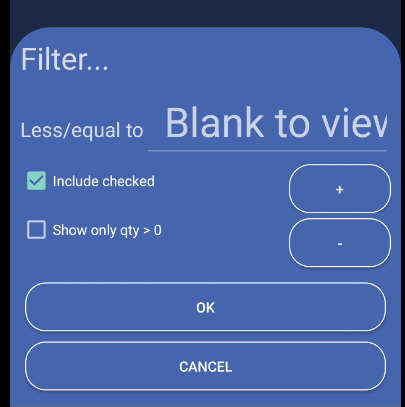
Use filters to focus on specific bins:
Tap filter icon or “Less/equal to 0” linkEnter a quantity (or leave blank for all bins)
Check “Include checked” to show bins you’ve already counted
Check “Show only qty > 0” to show bins above that quantity
Tap OK to apply the filter
Filter by Account (Optional)
Use the account spinner in the toolbar:
Select an account from the dropdown
The list shows only bins for that account
Change accounts anytime to filter differently
Search for Specific Bins (Optional)
Find bins quickly by name:
Enter bin name in the Enter Bin search field
The app searches as you type
Matching bins appear in the list
Tip: You can also scan bin barcode using the barcode icon.
Select Bin to Count
Single bin:
Tap a bin in the list to open its detail view
Multiple bins (batch):
Tap checkboxes next to bins to select them
The “UPDATE SERVER” button shows how many bins are selected
Select all bins you want to count together
View Bin Details
When you tap a bin, a detail screen opens showing:
Bin: bin name and volumeProduct details : SKU, description, Product IDCurrent quantity : System quantity (may show UOM if applicable)Location : Physical location in warehouseLPN : License Plate Number (if applicable)UOM : Unit of Measure and unit factor (if applicable)Serial status : If product uses serial tracking
Review all details to ensure you’re counting the correct bin.
Mark Bin as Done
If the quantity is correct:
Tap “Done” button in the bin detail view
The app marks the bin as counted
Bin is removed from the list (unless “Include checked” filter is enabled)
Open Cycle Count
From the main menu, tap the Cycle Count icon. The app loads and shows bins with zero or low quantities by default.
Find Bin with Quantity Discrepancy
Use filters, search, or scroll to find the bin where actual quantity doesn’t match system records:
Filter by quantity or account
Search for specific bin name
Scroll through the bin list
Open Bin Detail View
Tap the bin with the discrepancy to open its detail view.
Enter New Quantity
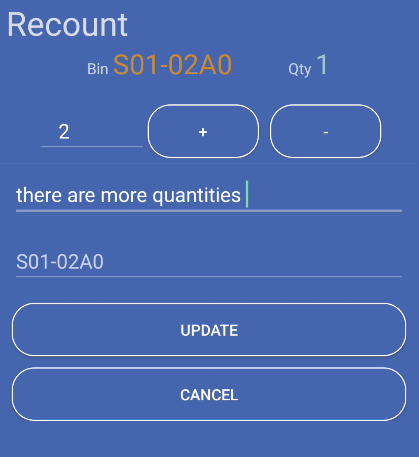
In the recount dialog:
Enter the actual quantity you counted
If product uses UOM, enter quantity in UOM units (app converts automatically)
Verify the quantity is correct
Enter Comment
Explain why the recount is needed:
Type a clear comment describing the discrepancy
Include relevant details (e.g., “Found extra items”, “Missing 5 units”)
Confirm Bin Name
Scan or type the bin name to confirm:
Bin name must match exactly
Type bin name manually
Select Reason and Type
Choose from dropdown menus:
Reason : Select the reason for recount from the dropdownType : Select the count type from the dropdownBoth fields are required
Update Recount
Tap Update button to save the recount:
App updates inventory with new quantity
Recount is saved to server
Bin detail view closes
List refreshes with updated information
Open Cycle Count
From the main menu, tap the Cycle Count icon. The app loads and shows bins with zero or low quantities by default.
Find Empty Bin
Use filters, search, or scroll to find bins that show quantity but are actually empty:
Filter by quantity (e.g., “Less/equal to 0”)
Search for specific bin name
Scroll through the bin list
Open Bin Detail View
Tap the empty bin to open its detail view.
Delete Bin
Tap “Delete” button in the bin detail view.
Confirm Deletion
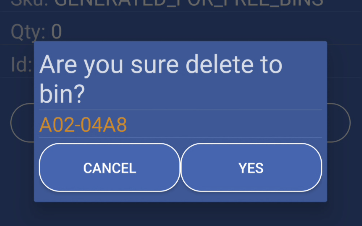
A confirmation dialog appears:
Confirm you want to delete this bin
Tap YES to confirm deletion
Or tap Cancel to keep the bin
Bin Removed
After confirmation:
Bin is removed from inventory
Bin disappears from the list
Deletion is saved to server
Quantity Filters:
The filter dialog lets you set quantity ranges:
Less/equal to [number] : Shows bins with quantities at or below the numberBlank (all bins) : Shows all bins regardless of quantity
Filter Options:
Include checked : Check this to show bins you’ve already countedShow only qty > 0 : Check this to show bins above quantity
How Filters Work:
Tap filter icon or “Less/equal to 0” link
Enter quantity (or leave blank)
Check “Show only qty > 0” to show bins above quantity
Check “Include checked” if you want to see counted bins
Tap OK to apply filter
List updates to show matching bins
When to Mark as Done:
Actual quantity matches system quantity
Bin is counted and verified
No discrepancies found
Ready to update inventory
Done Process:
Verify actual quantity matches system
Tap “Done” button in detail view
App sends update to server
Bin is marked as counted
Bin removed from list (unless filter includes checked)
Done Status:
Bins marked as done are removed from active list
Can see done bins if “Include checked” filter is enabled
Done status syncs with server
Prevents double-counting
When to Delete:
Bin shows quantity but is actually empty
Bin should be removed from inventory
Only available if current quantity is 0
Delete Restrictions:
Only available if quantity is 0
Requires confirmation
Cannot be undone easily
Use carefully
Recount Requirements:
Product cannot be serialized (serial status ≠ “R”)
Must provide reason and type for recount
Recount Steps:
Open bin detail view
Tap “Recount” button
Enter new quantity in the recount dialog
Enter comment explaining the recount
Enter bin name to confirm (must match)
Tap Update to save recount
App updates inventory with new quantity
Recount Dialog Fields:
New quantity : Enter the actual quantity you countedComment : Explain why recount is neededBin confirmation : Scan or type bin name to verifyReason : Select from dropdownType : Select from dropdown
UOM in Recount:
If product uses UOM, enter quantity in UOM units
App converts to system quantity automatically
Unit factor is applied: system qty = UOM qty × unit factor
Recount Restrictions:
Cannot recount serialized products
Requires recount permissions
Reason and Type are mandatory
Bin name must be confirmed
Selecting Multiple Bins:
Tap checkboxes next to bins to select them
Select as many bins as needed
“UPDATE SERVER” button shows count of selected bins
Button text: “UPDATE SERVER (X)” where X is count
Batch Update Process:
Select multiple bins using checkboxes
Review all selected bins
Tap “UPDATE SERVER” button
All selected bins are updated at once
Bins are marked as done on server
List refreshes after update
Open Cycle Count → View bins with zero quantities
Tap bin → Review details → Verify actual quantity
If correct → Tap “Done” → Bin marked as counted
Continue with next bin → Repeat process
Complete all bins → Finish
Open Cycle Count → View bins list
Select multiple bins → Tap checkboxes
Review selected bins → Verify quantities
Tap “UPDATE SERVER” → All bins updated at once
Continue with remaining bins → Repeat
Open Cycle Count → Tap filter icon
Set quantity filter → Enter quantity or choose “Greater than”
Optionally filter by account → Select account from spinner
Apply filters → View filtered bins
Count bins → Mark as done or recount
Update server → Save results
Problem: Bin shows “In processing” and cannot be opened.
Solutions:
Another user is currently working on this bin
Wait for them to finish
Select a different bin
Contact supervisor if issue persists
Problem: Searched bin doesn’t appear in results.
Solutions:
Check bin name spelling
Clear search and check filters
Bin may already be counted (check “Include checked”)
Problem: Delete button is disabled or unavailable.
Solutions:
Delete only works if quantity is 0
Verify bin is actually empty
Use recount instead if quantity is wrong
Contact supervisor if needed
Problem: Recount button doesn’t work or shows error.
Solutions:
Check if you have recount permissions
Verify product is not serialized (serialized products can’t be recounted)
Ensure reason and type are selected
Problem: Filter doesn’t show expected bins.
Solutions:
Check filter settings (quantity, show only qty > 0, include checked)
Verify account filter if set
Clear search field
Reset filters and try again
Check if bins match filter criteria
Focus on bins with zero quantities first. These are most likely to have errors and need immediate attention.
Always count actual quantity in bin before marking as done. Verify it matches system records to maintain accuracy.
Use quantity filters to focus on specific inventory levels. This helps you work through large inventories systematically.
Select multiple bins with similar issues and update them together. This saves time when processing many bins.
When recounting, provide clear comments explaining why. Select appropriate reason and type for accurate records.
Next Steps: