
Summary Metrics
View key performance indicators at a glance:
- Total orders (today, this week, this month)
- Order fulfillment status
- Revenue and sales trends
- Pending actions requiring attention
The Dashboard is your command center in OmniOrders. After logging in, you’ll see real-time metrics, alerts, and quick access to your most important workflows. Everything is designed to help you make fast, informed decisions about your daily operations.
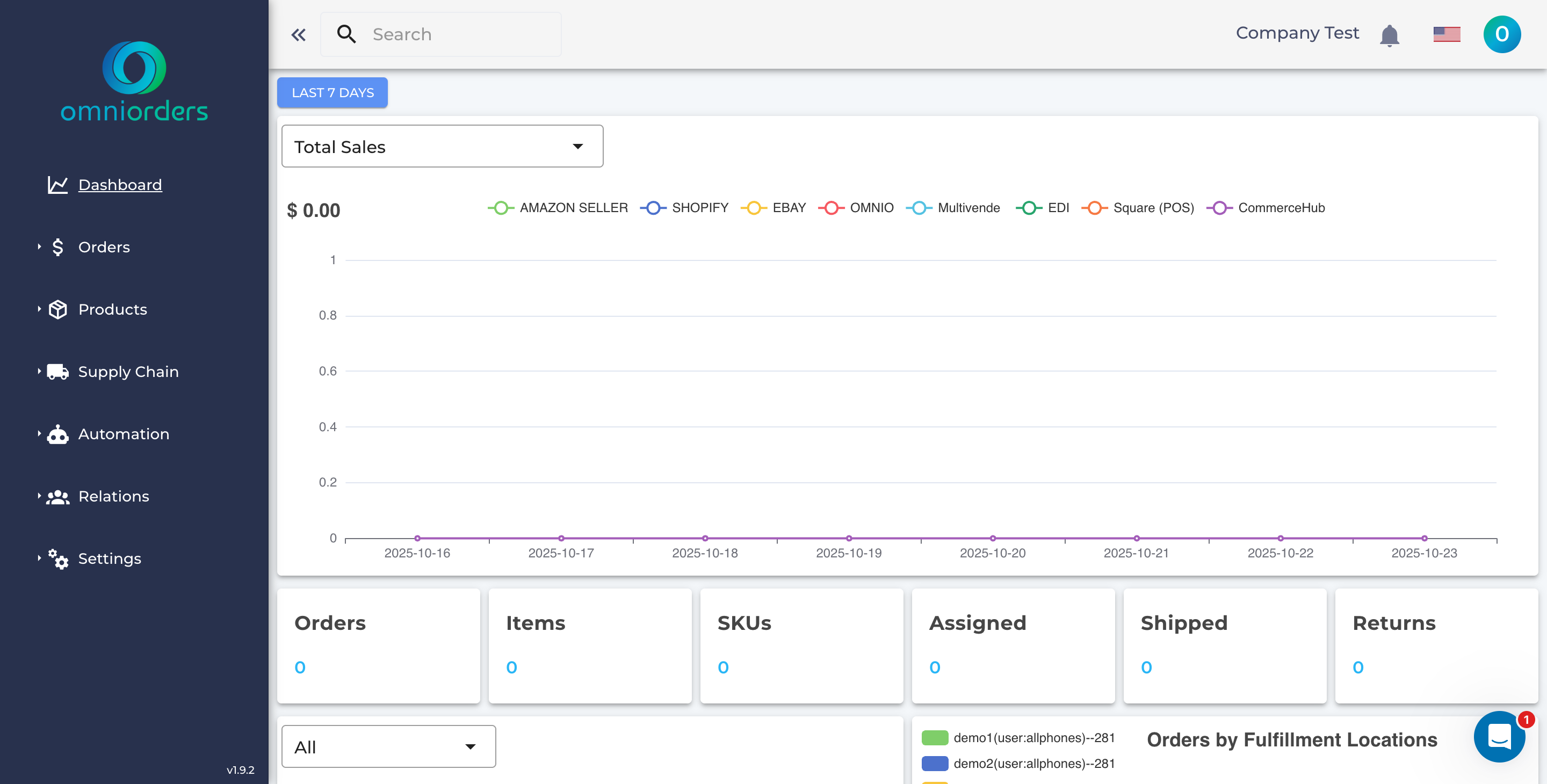
The Dashboard is organized into clear sections to help you quickly understand your business:
View key performance indicators at a glance:
Monitor your latest order activity:
Stay on top of stock levels:
Access your most common tasks directly from the Dashboard:
Start processing a new order immediately:
Update stock levels on the fly:
Handle shipping tasks efficiently:
The Dashboard keeps you informed about critical issues and important updates:

Critical Issues: Orders requiring immediate attention
Examples:
Connection Warnings: Third-party platform sync issues
Examples:
Updates & Information: Platform news and announcements
Examples:
Visualize your business trends with interactive charts:
Order Volume Trends
Track daily, weekly, and monthly order patterns to identify peak periods and growth trends
Fulfillment Performance
Monitor how quickly orders move from placement to shipment across different time periods
Top Products
See which SKUs are selling the most to optimize inventory and marketing strategies
Sales by Channel
Compare performance across different sales platforms (Shopify, Amazon, eBay, etc.)
Carrier Distribution
Analyze which shipping carriers you’re using most and their cost impact
Personalize your Dashboard to focus on what matters most to your workflow:
Arrange Your Layout: Rearrange dashboard cards by dragging them
Multi-Location Support: View data for specific warehouses
Time Period Selection: Adjust the reporting timeframe
Access advanced Dashboard configuration options:
Configure how often data updates:
Set your preferred starting state:
Control which alerts appear:
Use the Dashboard as your launching point to access all OmniOrders modules:
Main Navigation: Quick access to all modules
Current Location: Always know where you are
Shows your navigation path and allows quick backtracking to previous sections
Quick Find: Search across all data
Get the most out of your Dashboard with these tips:
Morning Routine: Review your Dashboard first thing
Stay Updated: Keep the Dashboard open in a browser tab
Daily Wrap-Up: Review performance before closing
Learn advanced Dashboard features:
Coming soon
Get assistance from the OmniOrders team:
Next Steps: Explore other sections to learn about Orders, Inventory, and Integrations.