
Account Setup
Ensure your company admin has:
- Created your account in OmniOrders
- Sent your welcome email or SSO instructions
Logging in to OmniOrders starts from the standard sign-in page. You only need your email and password, or you can use the Single Sign-On (SSO) buttons when your company connects through Keycloak. This guide covers both paths so you can reach the tenant dashboard quickly.
Watch this quick walkthrough to see the registration and login process in action:
Prepare the following before accessing your account:
Ensure your company admin has:
Have available:
Use a secure device:
Follow these steps to access OmniOrders with your email and password:
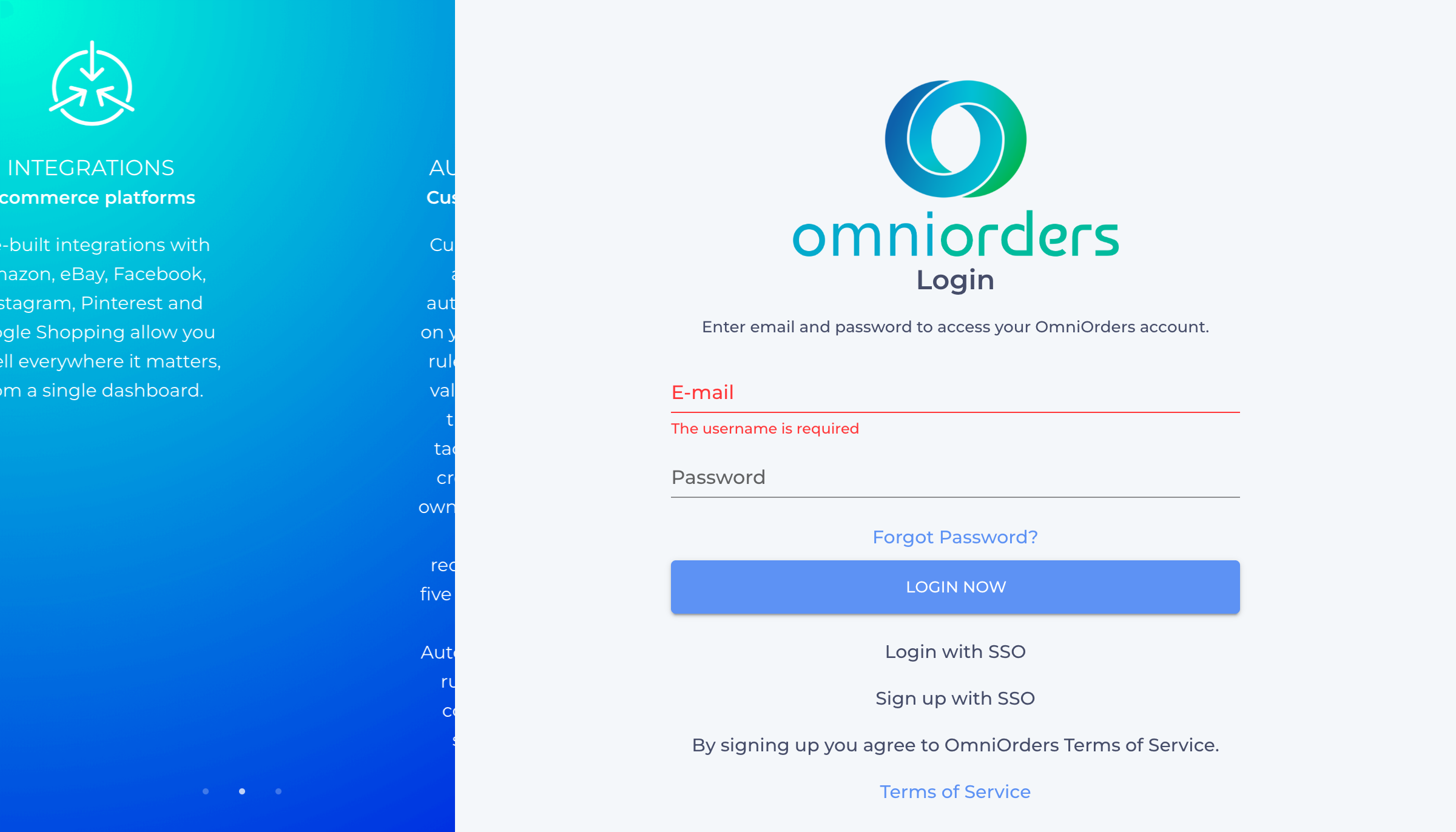
Navigate to Login Page
Open the OmniOrders login page at /session/login
Enter Your Credentials
Email fieldPassword fieldOptional: Remember Me
Check the Remember me box if using a trusted device
Sign In
Click Login Now - OmniOrders validates your credentials and redirects you to the Dashboard
Handle Errors
If credentials don’t match, you’ll see a message below the field. Update and try again.
Issue: Password format incorrect
Solution: OmniOrders requires a secure password. Follow the guidance shown and ensure:
Issue: System asks to complete registration
Solution: Check your email for the activation link from your admin and complete the setup process.
Issue: Login denied or account not found
Solution: Contact your company admin to verify:
Members sectionUse your company’s identity provider for seamless access:
Initiate SSO Login
Click Login With SSO on the login page
Redirect to Identity Provider
OmniOrders redirects you to your company’s identity provider via Keycloak
Sign In
Enter your SSO credentials on your provider’s page
Return to OmniOrders
After successful authentication, you’re automatically redirected to the tenant Dashboard
Browser Permissions
Allow popup/redirect permissions if prompted by your browser
Create your OmniOrders profile when your company provides SSO onboarding:
Start Registration
Select Register With SSO on the login page
Complete Identity Provider Prompts
Follow your company’s identity provider registration flow
Finalize Setup
After successful registration, OmniOrders opens:
/validateBased on your role, you’ll be directed to the appropriate dashboard:
Redirected to the Tenant Dashboard (/dashboard)
Access orders, inventory, shipping, and daily operations
Redirected to the Admin Dashboard
Manage system settings, users, and company configuration
Your personalized settings load automatically:
Need assistance? Access support resources for:
More resources coming soon
If you believe your account needs updating:
Next Steps: Once logged in, explore the Dashboard Overview to familiarize yourself with the interface.