This guide walks you through installing Shipedge Warehouse Pro on your Android device and completing the initial setup. Follow these steps to get started with warehouse operations on your mobile device.
Before installing, verify your device meets these requirements:
Android Version:
- Minimum: Android 5.0 Lollipop
- Target: Android 14
- Recommended: Android 8.0 or higher for best performance
Device Requirements:
- Android smartphone or tablet
- Internet connection (Wi-Fi or mobile data)
- At least 100 MB of free storage space
Required Permissions:
The app will request these permissions during installation and first launch:
- Internet - For synchronizing data with Shipedge server
- Network Access - For checking connection status
- Camera - Optional, for barcode scanning using device camera
- Storage - For local database and cached data
- Phone State - For device identification
Shipedge Warehouse Pro is distributed as an APK file. Installation methods depend on your organization’s setup.
-
Obtain the APK file
Get the shipedge.android-release.apk file from your administrator or download it from your organization’s distribution source.
-
Enable Unknown Sources
On your Android device:
- Go to Settings > Security (or Settings > Apps > Special access on newer devices)
- Enable Install unknown apps or Unknown sources
- Select the app you’ll use to install (File Manager, Chrome, etc.)
-
Install the APK
- Open the APK file using your file manager
- Tap Install when prompted
- Wait for installation to complete
- Tap Open or find the app icon in your app drawer
-
Verify Installation
Look for the “Shipedge Warehouse pro” app icon in your app drawer. The app should launch when tapped.
Shipedge Warehouse Pro is available for download from official app stores. This is the recommended method for most users.
-
Open Google Play Store
Tap the Play Store icon on your Android device.
-
Search for the App
- Tap the search bar at the top
- Type “Shipedge Warehouse Pro”
- Tap the app from the search results
-
Install the App
- Tap Install button
- Review permissions if prompted
- Wait for download and installation to complete
- Tap Open when installation finishes
-
Verify Installation
Look for the “Shipedge Warehouse pro” app icon in your app drawer. The app should launch when tapped.
-
Open App Store
Tap the App Store icon on your iPhone or iPad.
-
Search for the App
- Tap the Search tab at the bottom
- Type “Shipedge Warehouse Pro” in the search bar
- Tap the app from the search results
-
Install the App
- Tap Get or the cloud icon (if previously downloaded)
- Authenticate with Face ID, Touch ID, or your Apple ID password
- Wait for download and installation to complete
- Tap Open when installation finishes
After installation, complete the initial setup process:
-
Launch the App
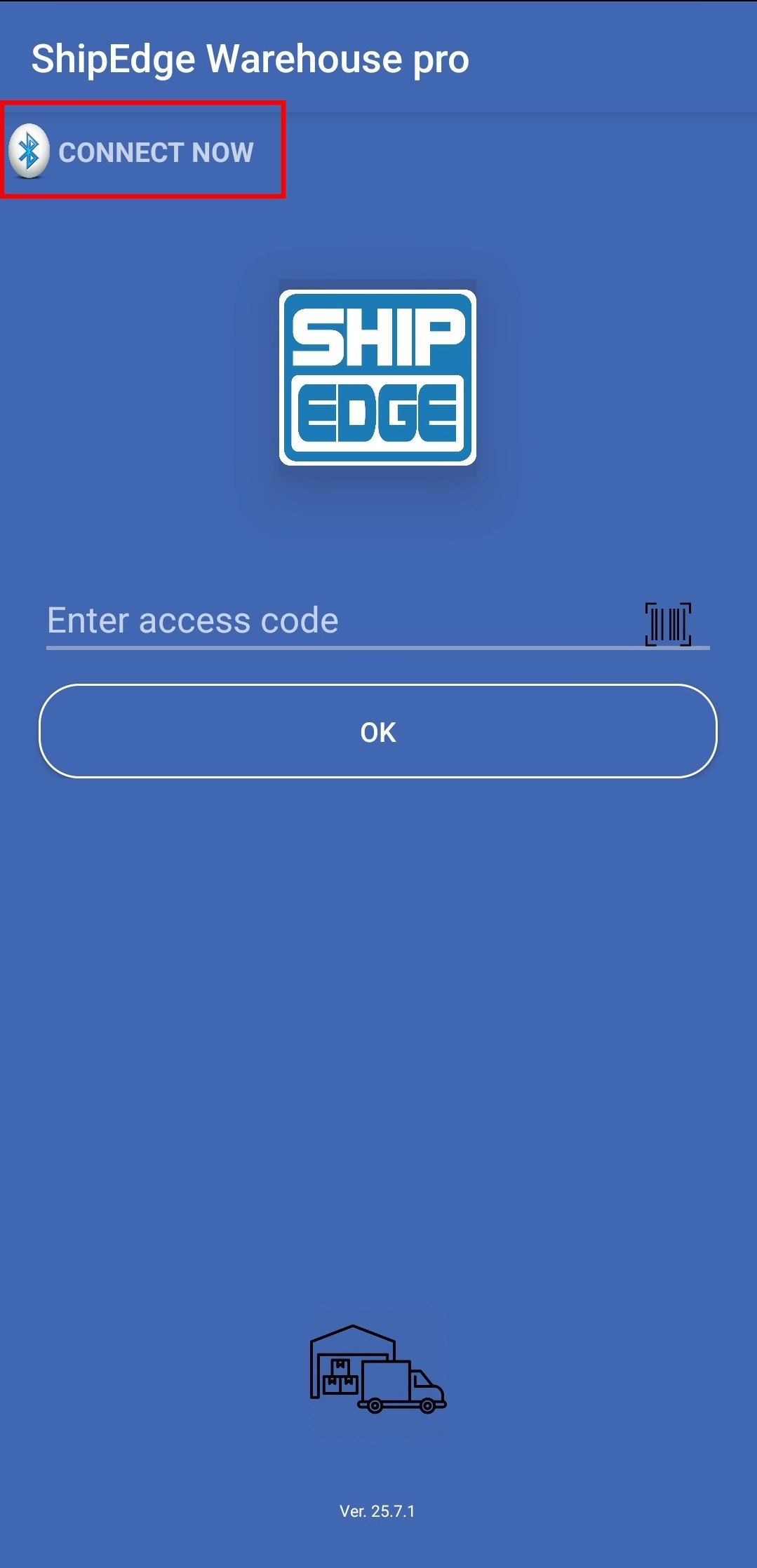
Tap the Shipedge Warehouse pro icon from your app drawer. The app opens to the login screen.
-
Grant Permissions
When prompted, grant the required permissions:
- Camera - Tap Allow if you plan to use the camera for barcode scanning
- Storage - Tap Allow for local data storage
-
Enter Warehouse Information
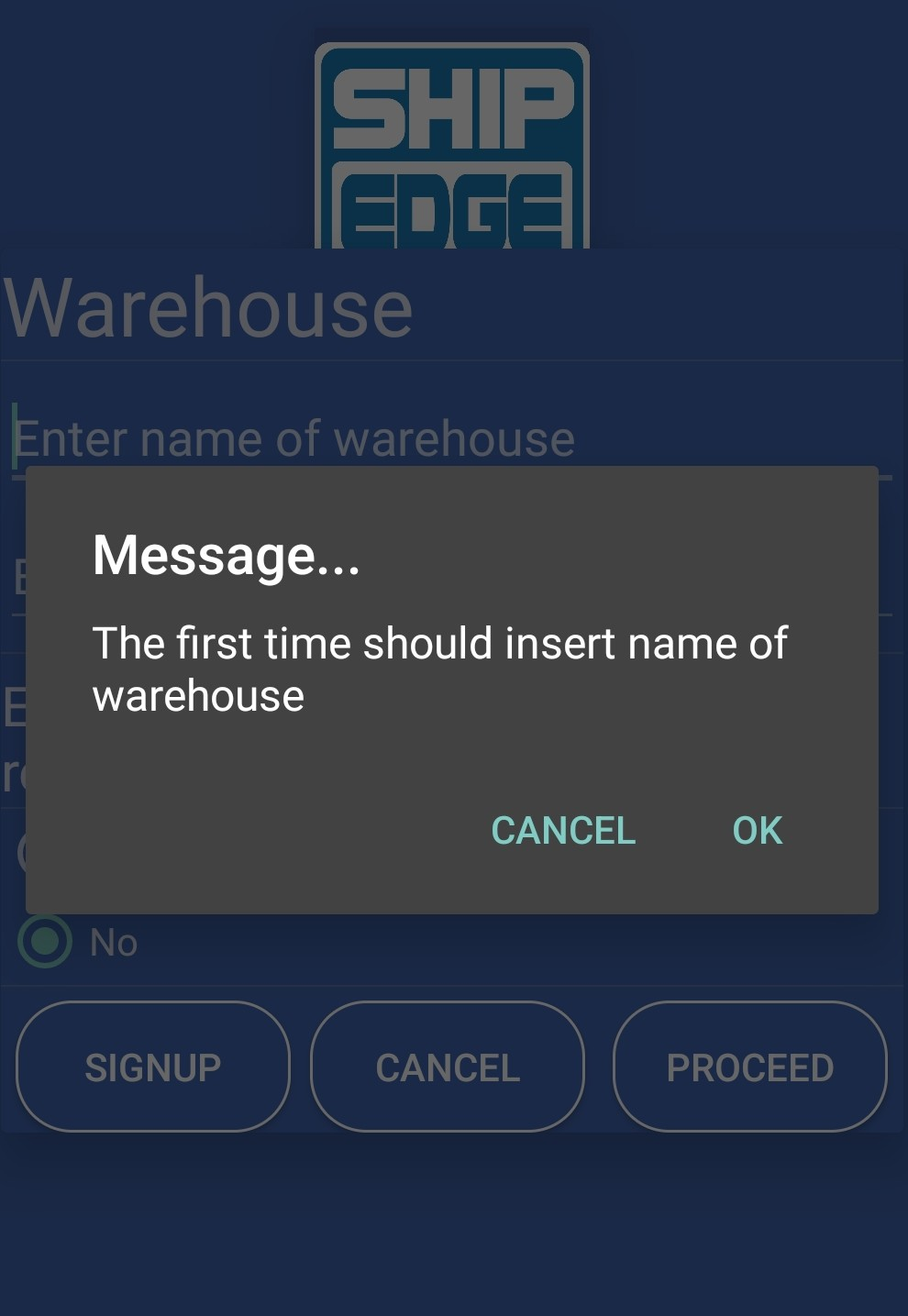
On first launch, you’ll see a message: “The first time should insert name of warehouse”
- Enter your warehouse name
- Enter your warehouse key (provided by your administrator)
- Tap OK to continue
-
Device Verification
The app verifies your device:
- Checks device activation status
- Validates warehouse connection
- Displays “Please wait - Verifying warehouse” during this process
-
Complete Setup
Once verification completes:
- Your device is registered with the Shipedge server
- Local database is initialized
- You’re ready to sign in
After successful installation and initial setup:
Check App Version:
- The app version is 25.7.1
- You can verify this in your device’s app settings if needed
Test Basic Functionality:
- Launch the app
- Verify the login screen appears
- Check that you can enter warehouse information
- Confirm internet connection is working
- Proceed to Login & Authentication to sign in
- Use credentials provided by your administrator
- Your user permissions determine which features you can access
Only install the app on devices approved by your IT administrator. Rooted or modified devices may be blocked.
Install app updates when provided by your administrator to ensure you have the latest features and security fixes.
Use device lock screen protection (PIN, pattern, or fingerprint) to protect warehouse data if your device is lost or stolen.
Ensure you have sufficient storage space. The app uses local SQLite database that grows with usage. Clear cache if needed.
“App not installed” error:
- Check that you have enough storage space (at least 100 MB free)
- Verify the APK file isn’t corrupted (re-download if needed)
- Ensure “Unknown sources” is enabled in device settings
- Try restarting your device and attempting installation again
“Package installer has stopped” error:
- Clear cache for Package Installer app in device settings
- Restart your device
- Try installing from a different file manager app
“Device not activated” message:
- Contact your administrator to activate your device
- Verify you entered the correct warehouse name and key
- Check your internet connection
Permissions not granted:
- Go to Settings > Apps > Shipedge Warehouse pro > Permissions
- Enable required permissions manually
- Restart the app after granting permissions
To remove Shipedge Warehouse Pro:
- Go to Settings > Apps > Shipedge Warehouse pro
- Tap Uninstall
- Confirm removal when prompted
After successful installation:
