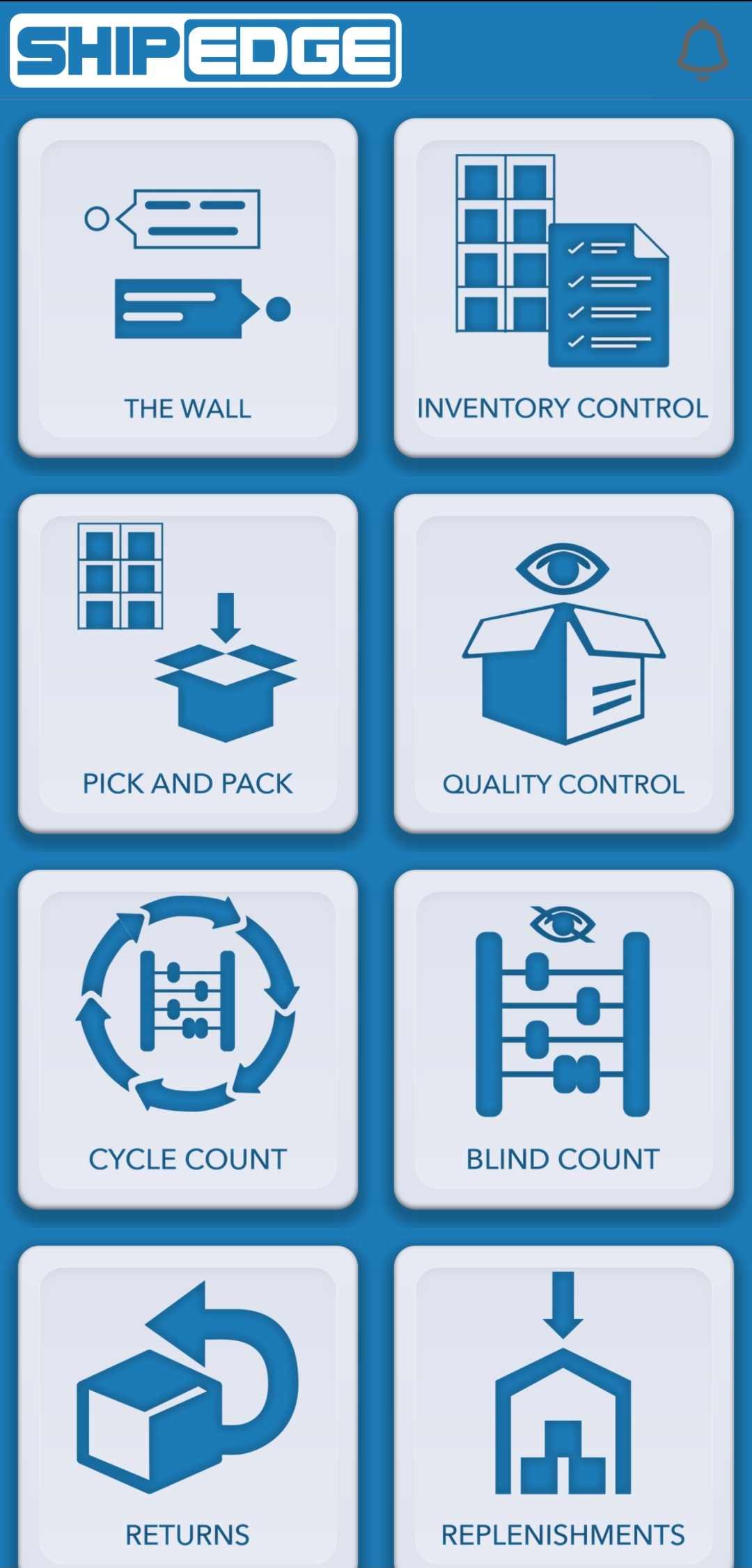
The main menu is your central hub for accessing all warehouse operations in Shipedge Warehouse Pro. After signing in, you’ll see a grid of icons representing the features you’re allowed to use based on your user permissions.
The menu shows only the features your account has permission to use. If you don’t see a feature, contact your administrator to request access.
The main menu displays available warehouse operations as icons in a grid layout. Each icon represents a different warehouse function you can access.
Key features:
Dynamic loading - Menu items are loaded based on your user permissionsIcon-based navigation - Tap icons to access different operationsPermission verification - Features are checked before openingTask notifications - Shows pending tasks if availableRefresh capability - Update menu to reflect permission changes
The menu displays icons in a 2-column grid :
Icons are arranged in rows of 2
Each icon represents a warehouse operation
Icons are sized to fit your device screen
Tap any icon to access that feature
Menu Structure:
Top section: Main operation icons (grid layout)
The menu can display up to 13 different operations, each identified by an ID:
Core Operations:
Wall - Wall module functionalityInventory Control - Bins management and inventory operationsPick and Pack - Order picking operationsQuality Control - Product and order quality inspectionCycle Count - Regular inventory countingBlind Count - Inventory counting without expected quantitiesReturns - Process returned itemsReplenishment - Move inventory from reserve to picking locations
Additional Operations:
Label Out Verify - Verify labels for outgoing shipmentsMomentum - Momentum module functionalityProject Clock - Time tracking for projectsLPN - License Plate Number managementLoad and Move - Manage blocked bins and load/move operations
Access the Main Menu
After successful login, you’re automatically redirected to the main menu. The menu loads with your available features.
View Available Operations
Browse the grid of icons to see which operations you can access. Icons are displayed in a 2-column layout.
Select an Operation
Tap the icon for the operation you want to perform. The app verifies your permission before opening the feature.
Wait for Verification
If permission is verified:
You’ll feel a short vibration (20ms)
The operation screen opens
The menu closes automatically
Handle Permission Errors
If you don’t have permission:
You’ll see “Not activated” message
The menu refreshes automatically
Contact your administrator to request access
The menu can display task notifications:
Alert badge appears if you have pending tasksShows task count when tasks are available
Tap the task icon to view task list
Task Display:
Visible when tasks exist and aren’t “Nothing” or “Error internet”
Hidden when no tasks are available
Updates automatically when tasks change
If you don’t see an operation you need, check with your administrator before troubleshooting. Permissions are server-controlled.
Pay attention to task notifications. They alert you to pending work that needs attention.
If permissions were recently updated, use the refresh option to reload the menu with current access.
Familiarize yourself with operation icons. Each icon represents a specific warehouse function you can access.
Problem: Menu displays “Nothing” message
Solutions:
Your account has no activity permissions assigned
Contact your WMS administrator to activate activities
Verify your login was successful
Problem: Tap an icon but see “Not activated” message
Solutions:
You don’t have permission for that operation
Contact administrator to request access
Menu will refresh automatically
Try refreshing menu manually if permissions were updated
Problem: Expected operations don’t appear in menu
Solutions:
Verify you have permissions for those operations
Check with administrator about your access level
Refresh menu to reload permissions
Some operations may be disabled for your warehouse
Problem: Tasks exist but notification badge doesn’t appear
Solutions:
Check that tasks aren’t “Nothing” or “Error internet”
Verify notification service is running
Refresh menu to update task status
Check server connection
Next: Explore specific operations like Replenishment or Picking