
This guide helps you solve common hardware problems in Shipedge Warehouse Pro. If you’re having issues with internet connection, camera, or storage, follow the solutions below to get back to work quickly.
Most hardware problems have simple fixes. Start with the basic solutions first, then try more advanced steps if needed.
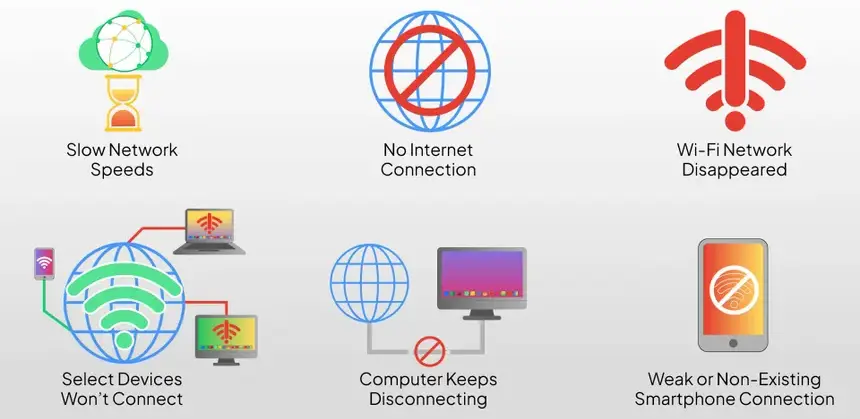
Problem: You see “Cannot connect to database server” or network errors.
Solutions:
-
Check internet connection
Open a web browser on your device and try to load a website. If it doesn’t load, you don’t have internet.
-
Check WiFi or mobile data
- WiFi: Make sure WiFi is connected and has internet access
- Mobile data: Check that mobile data is enabled and you have signal
-
Restart network connection
Turn WiFi or mobile data off, wait 5 seconds, then turn it back on.
-
Check warehouse server
Make sure your warehouse server is online. Contact your administrator if needed.
-
Restart the app
Close and reopen Shipedge Warehouse Pro. The app will try to reconnect.
Problem: You see a network error window when trying to use features that need internet.
Solutions:
- Tap OK on the error window
- Check your internet connection (WiFi or mobile data)
- Make sure you’re not in airplane mode
- Try again after ensuring internet is working
- Contact IT support if the problem continues
Problem: The app works but is very slow or times out frequently.
Solutions:
- Move closer to WiFi router: Weak WiFi signal causes slow connections
- Check data usage: Mobile data might be throttled if you’ve used too much
- Close other apps: Other apps using internet can slow down Shipedge Warehouse Pro
- Restart device: Sometimes a device restart fixes connection issues
- Check server status: Warehouse server might be experiencing high load
Problem: Nothing happens when you tap the camera button.
Solutions:
-
Check camera permission
Go to Settings → Apps → Shipedge Warehouse Pro → Permissions. Make sure Camera permission is enabled.
-
Check if camera is in use
Close other apps that might be using the camera (other camera apps, video calls, etc.).
-
Restart the app
Close Shipedge Warehouse Pro completely and reopen it.
-
Restart device
If the problem continues, restart your Android device.
-
Check device camera
Try opening your device’s built-in camera app. If it doesn’t work, there’s a device problem, not an app problem.
Problem: You take photos but they don’t appear or save.
Solutions:
- Check storage permission: Go to Settings → Apps → Shipedge Warehouse Pro → Permissions. Enable Storage permission.
- Check available space: Make sure your device has at least 100 MB free storage.
- Check external storage: Make sure external storage is available.
- Restart app: Close and reopen the app, then try taking a photo again.
Problem: You see a message asking for camera permission repeatedly.
Solutions:
- Go to device Settings → Apps → Shipedge Warehouse Pro → Permissions
- Enable Camera permission
- Enable Storage permission (needed to save photos)
- Return to the app and try again
- If permissions are grayed out, you may need to reset app preferences (Settings → Apps → Reset App Preferences)
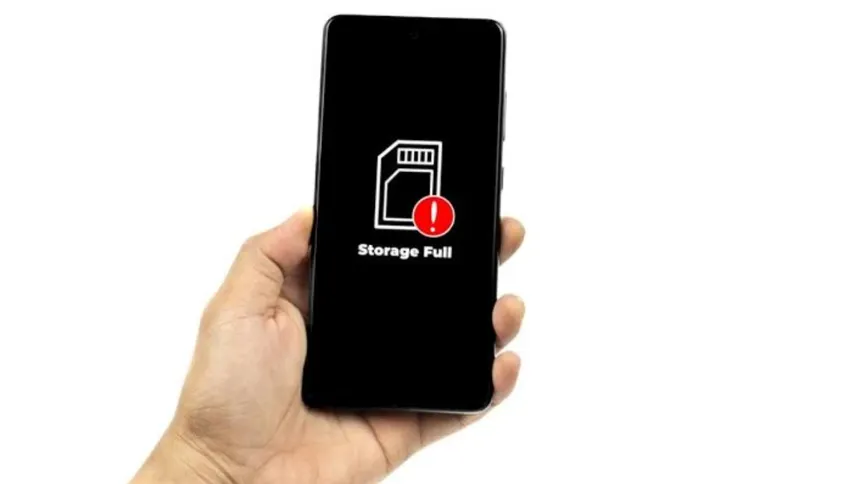
Problem: You see errors about storage being full.
Solutions:
-
Check available storage
Go to Settings → Storage to see how much space is available.
-
Free up space
- Uninstall unused apps
- Clear app cache: Settings → Apps → Shipedge Warehouse Pro → Storage → Clear Cache
- Move photos to cloud storage or computer
-
Delete old app data (if safe)
Settings → Apps → Shipedge Warehouse Pro → Storage → Clear Data (warning: this removes all app settings)
Problem: You see errors about external storage not being available.
Solutions:
- Check storage is mounted: Go to Settings → Storage and make sure external storage shows as mounted
- Restart device: Sometimes a restart fixes storage mounting issues
- Check SD card: If using SD card, make sure it’s properly inserted and formatted
Problem: The app is slow or freezes frequently.
Solutions:
- Close other apps: Swipe away other apps from recent apps to free up memory
- Restart device: A device restart clears memory and can fix performance issues
- Clear app cache: Settings → Apps → Shipedge Warehouse Pro → Storage → Clear Cache
- Check available storage: Low storage can slow down the device
- Update app: Make sure you’re using the latest version of Shipedge Warehouse Pro
Problem: The app closes without warning.
Solutions:
- Restart the app: Close and reopen Shipedge Warehouse Pro
- Restart device: Restart your Android device
- Clear app cache: Settings → Apps → Shipedge Warehouse Pro → Storage → Clear Cache
- Update app: Install the latest version from Google Play Store
- Check device storage: Low storage can cause crashes
- Report the issue: Note what you were doing when it crashed and report to support
Charge devices regularly. Low battery causes connection problems and unexpected shutdowns.
Keep at least 500 MB free on your device. Low storage causes performance issues and prevents saving data.
Keep the app and your Android device updated. Updates fix bugs and improve stability.
Verify internet before starting work. This prevents interruptions during operations.
Contact your administrator or Shipedge support if:
- Problems continue after trying all solutions above
- Multiple devices have the same problem
- You see error messages you don’t recognize
- Hardware appears damaged (scanner, device, etc.)
- You need help with warehouse server configuration
- Problems prevent you from completing work
Information to provide when contacting support:
- Device model and Android version
- App version (check in app settings or About)
- What you were doing when the problem occurred
- Exact error messages (take screenshots if possible)
- Steps you’ve already tried
- How often the problem happens
