
Fulfill Orders Fast
Pick products quickly with clear instructions. The app shows you exactly what to pick and where to find it.
The Picking feature lets you fulfill customer orders by picking products from warehouse locations. You can work with individual shipments, pick by product, or pick by location. The app guides you through each pick and helps you pack items correctly.
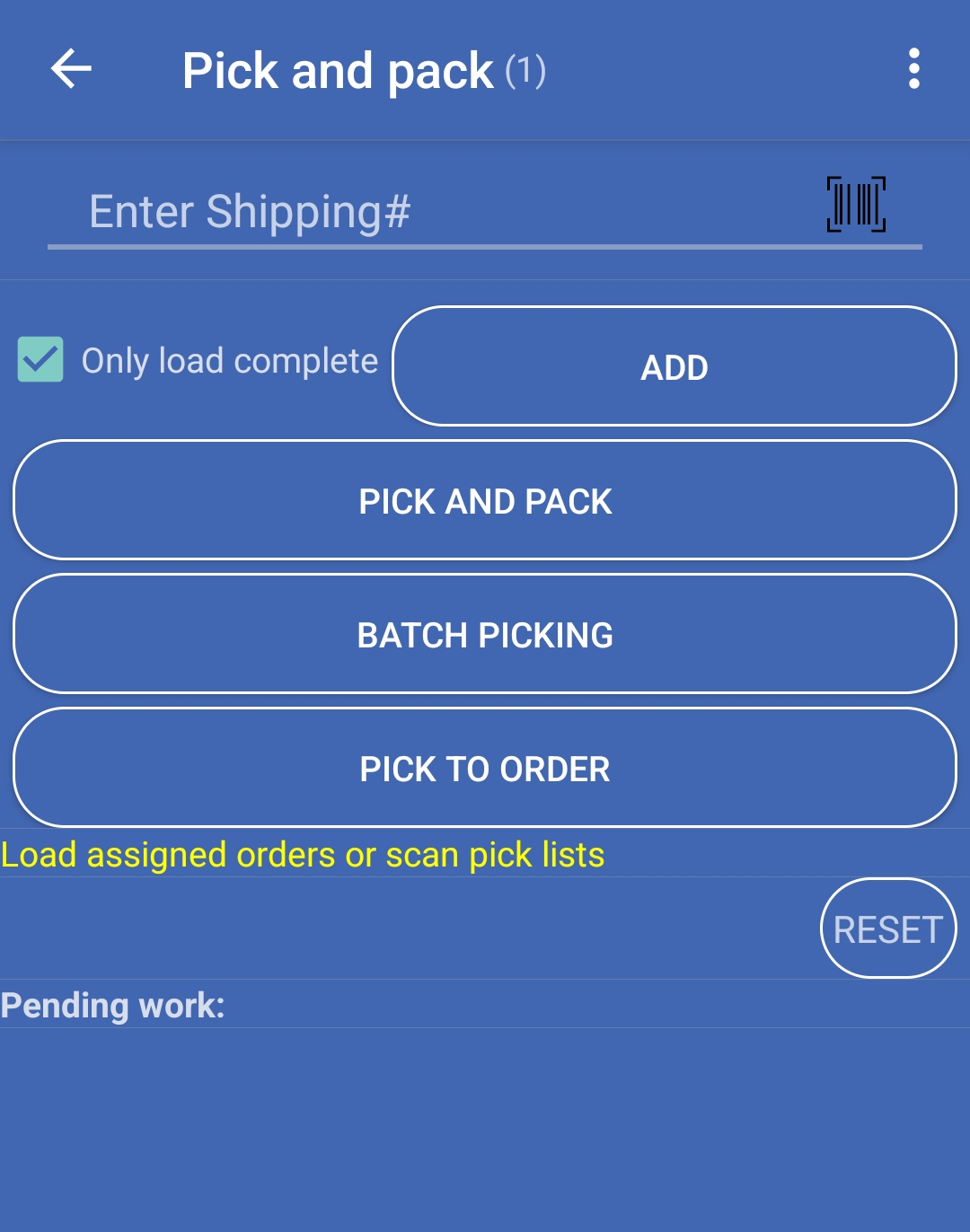
Picking is the process of selecting products from warehouse locations to fulfill customer orders. The Picking feature combines picking and packing operations, letting you pick products and prepare them for shipping in one workflow.
Main purpose:
Pick products quickly with clear instructions. The app shows you exactly what to pick and where to find it.
Choose the best mode for your workflow: pick by shipment, by product, or by location. Each mode fits different warehouse needs.
Track every pick with bin locations, quantities, and serial numbers. Know exactly what was picked and when.
Pick multiple orders at once with batch picking. Work more efficiently by grouping similar picks together.
Open the Main Menu
From the login screen, sign in with your credentials. You’ll see the main menu with all available features.
Select Pick and Pack
Tap the Pick and Pack icon in the main menu. The app checks your user permissions and opens the Picking screen.
Choose Your Mode
Select how you want to work: Shipments, Products, or Locations. Each mode has a different workflow for picking.
The Picking screen shows:
Main elements:
Information shown during picking:
The Picking feature offers three main modes:
How it works:
Best for: Standard order fulfillment, one order at a time
Hint: “Scan or enter Shipping#“
How it works:
Best for: Efficient picking when the same product appears in multiple orders
Hint: “Scan or enter ProductId, Sku, UPC”
How it works:
Best for: Zone-based picking, picking by warehouse area
Hint: “Scan or enter Location”
The picking process follows these steps:
Enable batch picking to work on multiple orders at once. This lets you:
If products require serial numbers:
The app helps you verify bins:
If you have unfinished picking work:
Your picking capacity is shown in the toolbar. This helps you:
When you complete a pick:
The app records the pick with:
Products are marked as picked in the system
You can then:
Data syncs with the server to update inventory
Always scan or verify the bin location before picking. Make sure you’re at the correct location to avoid picking errors.
Double-check quantities before confirming picks. Make sure the quantity matches what you actually picked.
Choose the picking mode that fits your workflow. Shipments for orders, Products for efficiency, Locations for zone picking.
Check pending work regularly. Complete unfinished picks before starting new ones to keep your work organized.
Next Steps: