This guide walks you through the complete picking process from loading orders to packing items. Follow these steps to pick products accurately and efficiently.
The picking process follows these main steps:
- Choose picking mode - Select Shipments, Products or Locations
- Load orders - Scan or enter Shipping#, Product ID or Location
- Choose picking method - Select Pick and Pack, Batch Picking, or Pick to Order
- View pick list - See all products that need to be picked
- Pick products - Scan bin, verify location, enter quantity
- Handle serials - Scan serial numbers if required
- Pack items - Assign items to boxes or containers
- Complete - Finish picking and move to the next order
-
Choose Your Picking Mode
Select how you want to work from the toolbar:
- Shipments: Pick complete orders one at a time
- Products: Pick the same product for multiple orders
- Locations: Pick all products from a specific location
The mode determines what you scan to start picking.
-
Load Orders or Products
For Shipments Mode:
- Scan or enter a Shipping#
- The app loads all products for that shipment
- Hint: “Scan or enter Shipping#”
For Products Mode:
- Scan or enter Product ID, SKU, or UPC
- The app shows all orders that need that product
- Select an order from the list
- Hint: “Scan or enter ProductId, Sku, UPC”
For Locations Mode:
- Scan or enter a Location
- The app shows all products at that location that need picking
-
Choose Your Picking Method
After loading orders, select how you want to pick:
- Pick and Pack: Standard picking method - pick products one at a time
- Batch Picking: Pick products for multiple orders efficiently - groups picks by location
- Pick to Order: Pick a specific product for multiple orders - scan product first, then select orders
Note: You can also check “Only load complete” to only load complete orders.
-
Review Pick List
The app displays a list of products to pick showing:
- Shipping number
- Product details (SKU, UPC, description)
- Bin location
- Quantity needed
- Pack count (if already partially packed)
- Tray/Box assignment
Review the list to understand your picking tasks.
-
Start Picking a Product
Tap a product from the pick list or let the app guide you to the next item. The picking dialog opens showing:
- Shipping#: The order number
- Bin: The bin location where the product is stored
- Product details: SKU, UPC, Product ID, description
- Quantity: Total quantity needed
- Pack count: Already packed quantity
- Lot/Expiration/UOM: If applicable
- Product image: If available
-
Scan or Enter Bin Location
In the Bin field (or external keyboard field):
- Scan the bin barcode with your scanner
- Type the bin ID manually
- The app verifies the bin matches the product
Note: The app shows the expected bin location. Verify you’re at the correct bin before scanning.
-
Verify Bin Matches Product
After scanning the bin:
- The app checks if the bin contains the correct product
- If correct, you can proceed with picking
- If incorrect, the app shows an error and asks you to scan again
Important: Always verify the bin matches before picking to avoid errors.
-
Enter Quantity Picked
Enter how many units you’re picking:
- Use + and - buttons: Adjust quantity quickly
- Type directly: Enter quantity in the quantity field
- Check limits: Don’t pick more than the total quantity needed
The app shows:
- Total: Total quantity needed
- Pack count: Already packed
- Remaining: How much still needs to be picked
- Pick count: Your current pick quantity
-
Handle Serial Numbers (If Required)
If the product requires serial number tracking:
- A serial number input screen appears automatically
- Scan each serial number barcode
- The counter shows how many serials you’ve scanned
- Review the list of scanned serials
- The quantity must match the number of serials scanned
Note: You must scan all required serials before completing the pick.
-
Confirm the Pick
After entering quantity (and scanning serials if needed):
- The app processes the pick
- Updates the pick list
- Shows next product to pick (if batch picking)
- Moves to packing if order is complete
-
Pack Items (If Needed)
After picking, assign items to boxes or containers:
- Tray assignment: Tap the tray/box field to assign a tray
- Container ID: If using container mode, scan container ID
- Pack count: Shows how many items are packed
The app tracks which items go in which box.
-
Complete Order or Continue Picking
If order is complete:
- All products are picked and packed
- Order status changes to “PACK”
- You can start a new order
If batch picking:
- Continue picking products for other orders
- The app guides you through each pick
- Complete all picks before finishing
If Pick to Order:
- After picking a product, select the next order that needs the same product
- Continue until all orders for that product are complete
- Then scan the next product
-
Handle Pending Work
If you have unfinished picking work:
- The pending work icon appears in the toolbar
- Tap it to see incomplete picks
- Resume work where you left off
- Complete pending picks before starting new ones

Shipments Mode:
- Pick complete orders one at a time
- Best for standard order fulfillment
- Scan Shipping# to load order
- Pick all products for that shipment before moving to next
- Hint: “Scan or enter Shipping#”
Products Mode:
- Pick same product for multiple orders
- Best for efficient picking when product appears in multiple orders
- Scan Product ID, SKU, or UPC
- See all orders needing that product
- Select order to pick for
- Hint: “Scan or enter ProductId, Sku, UPC”
Locations Mode:
- Pick all products from a specific location
- Best for zone-based picking
- Scan location barcode
- See all products at that location needing picking
- Pick all products from location for all orders
- Hint: “Scan or enter Location”
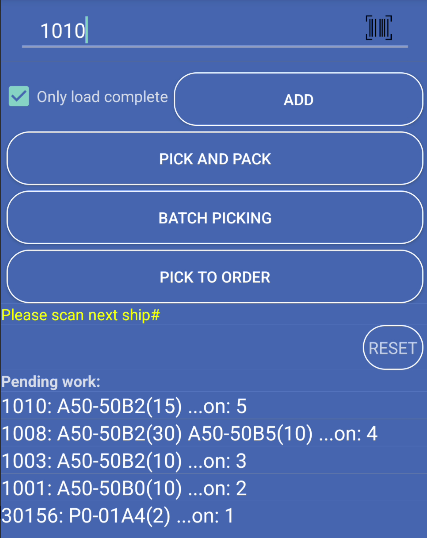
Add Button:
- Click “Add” button after scanning Shipping#, Product ID or Location
- The app loads orders into the pick list
- You can add multiple orders before starting to pick
- Orders appear in the list below
Only Load Complete Checkbox:
- Check “Only load complete” to only load orders that are fully ready
- Unchecked: Loads all orders (including partial or incomplete)
- Checked: Only loads complete orders ready for picking
- Helps ensure you only work on orders that can be fully completed
How Bin Verification Works:
- App shows expected bin location for each product
- You scan or enter the bin you’re at
- App verifies bin matches the product
- If correct, picking proceeds
- If incorrect, error shown and you must scan again
Bin Verification Tips:
- Always scan the actual bin you’re picking from
- Verify bin ID matches what’s shown on screen
- Check bin tag if available
- Don’t pick from wrong bin even if product looks similar

Quantity Field:
- Shows total quantity needed
- Shows already packed quantity
- Shows remaining quantity to pick
- Enter quantity you’re actually picking
Quantity Controls:
- + button: Increase quantity by 1
- - button: Decrease quantity by 1
- Direct entry: Type quantity directly
- Limits: Cannot exceed total quantity needed
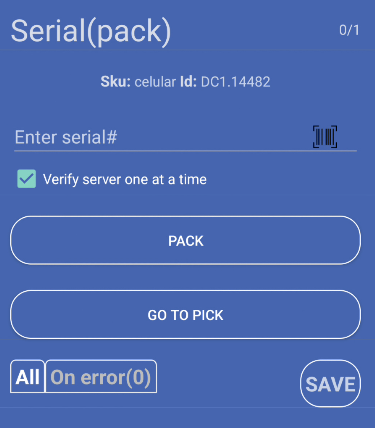
When Serial Tracking is Required:
- Product has serial tracking enabled
- Serial input screen appears automatically
- Must scan all serials before completing pick
Serial Scanning Process:
- Scan each serial number barcode
- Serial appears in scanned list
- Continue until all serials scanned
- Quantity must match serial count
Serial Management:
- View list of scanned serials
- Remove serials if wrong one scanned
- Counter shows progress (scanned/total)
- Complete when all serials scanned
Container ID Mode (Carton ID):
- Alternative to tray assignment
- Scan container ID instead of tray number
- App tracks items by container
- Useful for shipping containers
Pack Count:
- Shows how many items are already packed
- Updates as you pack items
- Helps track packing progress
- Shows remaining items to pack
How Batch Picking Works:
- Click “Batch picking” button
- Pick products for multiple orders in one trip
- App groups picks by location when possible
- More efficient than picking orders one at a time
- Uses keyboard mode for faster picking
Batch Picking Benefits:
- Pick same product for multiple orders at once
- Reduce walking between locations
- Group picks by bin location
- Work more efficiently
- Process multiple orders in single warehouse trip
Batch Picking Tips:
- Review all picks before starting
- Group picks by location
- Complete all picks before packing
- Verify each pick is correct
- Use keyboard scanner for faster entry
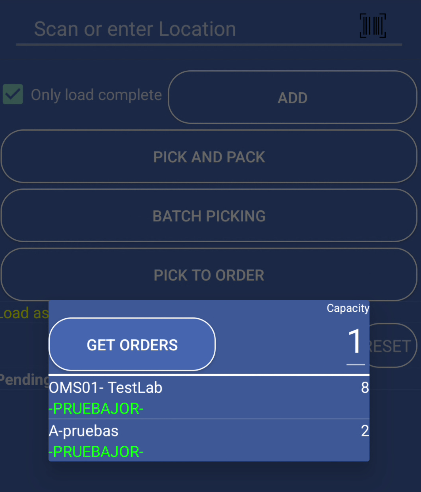
How Pick to Order Works:
- Click “Pick to order” button
- Scan or enter Product ID, SKU, or UPC first
- App shows all orders that need that product
- Select an order from the list
- Pick the product for that order
- Select next order needing same product
- Continue until all orders for that product are complete
Pick to Order Benefits:
- Pick one product for multiple orders efficiently
- See all orders needing a specific product
- Work product by product instead of order by order
- Reduce walking when same product is in multiple orders
Pick to Order Process:
- Click “Pick to order” button
- Scan product (Product ID, SKU, or UPC)
- See list of orders needing that product
- Select an order from the list
- Scan bin and enter quantity
- Confirm pick
- Select next order from list
- Repeat until all orders complete
- Scan next product to continue
Pick to Order Tips:
- Best when same product appears in many orders
- Review order list before picking
- Complete all orders for one product before moving to next
- Verify quantities match order requirements
When Product Not in Expected Bin:
- If product is in different bin than shown
- Tap “Next Bin” option
- App shows list of bins with same product
- Select correct bin from list
- App moves product to expected bin (if needed)
Other Bin Process:
- Tap “Other” option
- See list of bins with same product
- Select correct bin
- Confirm move if needed
- Continue picking from correct bin
What is Pending Work:
- Incomplete picks from previous session
- Partially packed orders
- Picks that weren’t completed
- Serial numbers not synced
Completing Pending Work:
- Review what needs to be completed
- Resume picking where you left off
- Complete serial scanning if needed
- Sync pending work to server
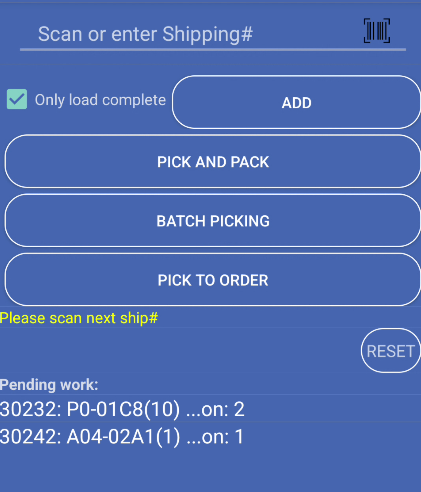
- Select Shipments mode → Scan Shipping#
- Click “Pick and pack” button
- Review pick list → Tap product to pick
- Scan bin → Verify bin matches
- Enter quantity → Confirm pick
- Pack items → Assign to tray/box or Container ID
- Complete order → Start next order
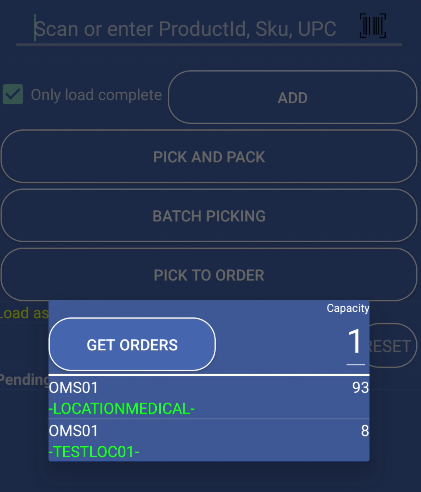
- Select Products mode → Scan Product ID/SKU/UPC
- Select order from list → Click “Pick and pack”
- Scan bin → Enter quantity → Confirm
- Select next order needing same product
- Repeat until all orders complete
- Pack items for each order
- Select Locations mode → Scan location
- Click “Pick and pack” button
- See all products at location needing picking
- Pick each product → Scan bin → Enter quantity
- Complete all picks from location
- Move to next location
- Pack items by order
- Click “Pick to order” button
- Scan Product ID, SKU, or UPC
- See list of orders needing that product
- Select an order from the list
- Scan bin → Enter quantity → Confirm pick
- Select next order from list
- Repeat until all orders for product complete
- Scan next product to continue
Problem: Scanned bin doesn’t contain the expected product.
Solutions:
- Verify you’re at the correct bin location
- Check bin ID matches what’s shown
- Use “Other Bin” option if product is in different bin
- Contact supervisor if bin location is wrong
Problem: Trying to pick more than total quantity needed.
Solutions:
- Check total quantity shown
- Don’t pick more than remaining quantity
- Verify pack count is correct
- Adjust quantity to match what’s needed
Problem: Number of serials doesn’t match quantity.
Solutions:
- Ensure all serials are scanned
- Check serial counter matches quantity
- Review scanned serials list
- Remove duplicate or wrong serials
Problem: Cannot sync with server.
Solutions:
- Check internet connection
- Verify Wi-Fi or mobile data is active
- Try again after connection restored
- Some operations queue for later sync
Problem: Product not found in expected bin.
Solutions:
- Verify bin location is correct
- Check if product was moved
- Use “Other Bin” to find product
- Contact supervisor if product missing
Always scan and verify the bin location before picking. Make sure you’re at the correct bin to avoid picking errors.
Double-check quantities before confirming picks. Verify the quantity matches what you actually picked from the bin.
Choose the picking mode that fits your workflow. Shipments for orders, Products for efficiency, Locations for zone picking.
If products require serial numbers, scan all serials before completing the pick. Ensure quantity matches serial count.
Review picked items before packing. Ensure all products are correct and quantities match before assigning to boxes.
Next Steps:
