
Skip to content

Quality Control Overview

The Quality Control feature lets you verify packed orders before they ship. You check products, bins, and quantities to ensure orders are correct. This helps catch errors before orders leave the warehouse.
Quality Control is the process of checking packed orders to make sure they’re correct before shipping. You verify that the right products are in the right quantities and that everything matches the order.

Main purpose:

  • Verify packed orders before shipping
  • Check products, bins, and quantities
  • Find missing or incorrect items
  • Ensure order accuracy
  • Handle serial number tracking
  • Manage packaging and boxes

Catch Errors Early

Find mistakes before orders ship. Verify products and quantities to prevent shipping errors.

Ensure Order Accuracy

Make sure orders have the right products in the right quantities. Keep customers happy with accurate shipments.

Multiple Load Options

Load orders by Shipping#, Tray#, or Container ID. Choose the method that fits your workflow.

Track Missing Items

Identify missing or incorrect items quickly. The app helps you find and fix problems before shipping.

  1. Open the Main Menu

    From the login screen, sign in with your credentials. You’ll see the main menu with all available features.

  2. Select Quality Control

    Tap the Quality Control icon in the main menu. The app checks your user permissions and opens the Quality Control screen.

  3. Load an Order

    Enter or scan a Shipping#, Tray#, or Container ID to load an order for verification.

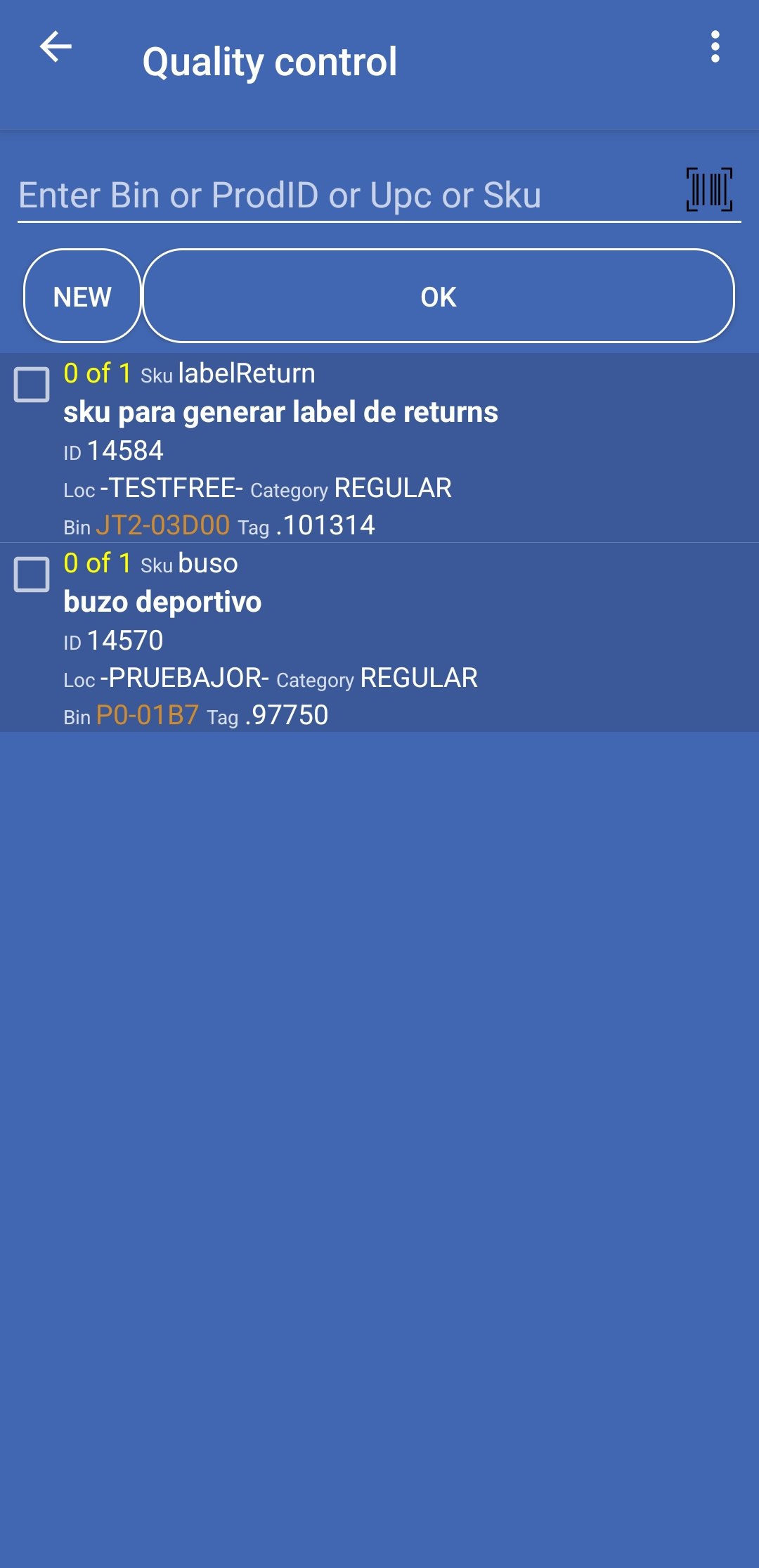
The Quality Control screen (QualityControl.java) shows:

Main elements:

  • Search field: Enter or scan Shipping#, Tray#, Container ID, Bin, Product ID, UPC, or SKU
  • Load mode options: Choose Ship#, Tray#, or Container ID (in toolbar menu)
  • OK button: Process your entry after entering order information
  • New button: Clear the current order and start fresh
  • Product list: Shows products that need verification
  • Packaging display: Shows current packaging information
  • Camera icon: Tap to use the device camera for barcode scanning

Information shown for each product:

  • Order ID
  • Bin location
  • Product details (SKU, description, UPC)
  • Quantity ordered
  • Quantity picked
  • Location
  • Serial numbers (if required)
  • Lot and expiration date
  • UOM (Unit of Measure)
  • Packaging information

Quality Control offers three ways to load orders:

How it works:

  • Enter or scan a Shipping# to load an order
  • Verify all products for that shipment
  • Check quantities and products match the order

Best for: Standard order verification by shipping number

Hint: “Enter Shipping#“

How it works:

  • Enter or scan a Tray# to load an order
  • Verify products in that tray
  • Check tray contents match the order

Best for: Tray-based picking and verification

Hint: “Enter tray#“

How it works:

  • Enter or scan a Container ID to load an order
  • Verify products in that container
  • Check container contents match the order

Best for: Container-based shipping and verification

Hint: “Enter Container id”

The quality control process follows these steps:

  1. Choose load mode: Select Ship#, Tray#, or Container ID from the toolbar menu
  2. Load order: Enter or scan the Shipping#, Tray#, or Container ID
  3. View product list: See all products that need verification
  4. Verify products:
    • Scan or enter Bin, Product ID, UPC, or SKU
    • The app matches scanned items to the order
    • Verify quantities match
    • Handle serial numbers if required
  5. Handle issues: Address missing items or discrepancies
  6. Complete: Finish verification and move to the next order

Verify products by scanning or entering:

  • Bin: Scan the bin location to verify products
  • Product ID: Enter or scan the product ID
  • UPC: Scan the UPC barcode
  • SKU: Enter or scan the SKU

The app matches what you scan to the order and shows if it’s correct.

If products are missing or incorrect:

  • The app identifies missing items
  • Shows which items need attention
  • Helps you find and fix problems
  • Tracks discrepancies for reporting

If products require serial numbers:

  • Scan each serial number as you verify
  • The app verifies serials are correct
  • Track which serials go with which orders
  • Ensure serial numbers match the order

Manage packaging during verification:

  • See current packaging information
  • Change packaging if needed
  • Handle multiple boxes per order
  • Track packaging status

If you have unfinished verification work:

  • The app shows pending work when you return
  • Resume verification where you left off
  • Complete unfinished orders before starting new ones

Access additional quality control features:

  • Label ready: Process labels that are ready for verification
  • Labels out verify: Verify labels that have been printed

When you complete verification:

  1. The app records verification results
  2. Order status updates in the system
  3. Missing items are tracked
  4. Packaging information is updated
  5. Data syncs with the server

Verify Before Shipping

Always verify orders before they ship. This catches errors early and prevents customer complaints.

Check Quantities Carefully

Verify quantities match the order. Make sure you’re checking the right amount of each product.

Scan Bins and Products

Use scanning to verify products quickly. Scanning is faster and more accurate than manual checking.

Handle Missing Items

Address missing items immediately. Find and fix problems before completing verification.

Complete Serial Tracking

If products require serial numbers, scan all serials before completing verification. This ensures accurate tracking.

Use the Right Mode

Choose the load mode that matches your workflow. Ship# for orders, Tray# for trays, Container ID for containers.

Next Steps:

Activity: QualityControl.java
Layout: qualitycontrolview.xml
Toolbar: toolbar_qc.xml
List Layout: listqc.xml

The Quality Control feature connects to the Shipedge server to:

  • Load orders for verification
  • Verify products and quantities
  • Track missing items
  • Handle serial number tracking
  • Update packaging information
  • Sync verification results in real time

Note: Quality Control requires an active internet connection to load orders and sync verification results. Some operations may be queued for sync if the connection is temporarily unavailable.