This guide walks you through the complete quality control process from loading orders to completing verification. Follow these steps to verify packed orders accurately before they ship.
Select how you want to load orders from the toolbar menu:
Ship#: Load orders by shipping number
Tray#: Load orders by tray number
Container ID: Load orders by container ID
The mode determines what you scan to load orders.
Load an Order
For Ship# Mode:
Enter or scan a Shipping# in the search field
Tap OK or press Enter
The app loads all products for that shipment
For Tray# Mode:
Enter or scan a Tray# in the search field
Tap OK or press Enter
The app loads products in that tray
For Container ID Mode:
Enter or scan a Container ID in the search field
Tap OK or press Enter
The app loads products in that container
Review Product List
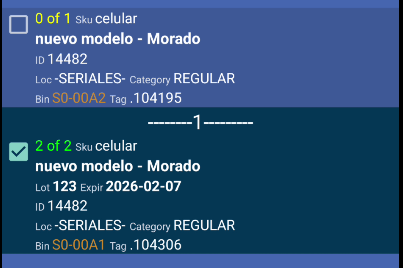
After loading, the app shows a list of products that need verification:
Bin location: Where each product should be
Product details: SKU, description, UPC, Product ID
Quantity ordered: How many were ordered
Quantity picked: How many were picked
Status: Whether product is checked or not
Location: Physical location in warehouse
Lot and expiration: If applicable
UOM: Unit of Measure if applicable
Packaging: Tray/box information
Review the list to understand what needs verification.
Scan or Enter Product Information
In the search field:
Scan bin barcode, UPC, Product ID, or SKU
Or type the information manually
Press Enter or wait for scanner to send data
The app processes your scan and matches it to the order.
Handle Multiple Matches
If the same product appears multiple times in the order:
The app shows a list of matching products
Each product shows its bin location
Tap the product you’re verifying
The app verifies that specific product
Tip: The app suggests the bin location for products with the same code.
Verify Product Matches Order
After scanning:
The app checks if the scanned item matches the order
If correct, the product is marked as verified
Quantity picked is updated automatically
If product doesn’t match:
App shows error message
You can try scanning again
Check you’re scanning the correct product
Handle Serial Numbers
If the order contains products that require serial number tracking:
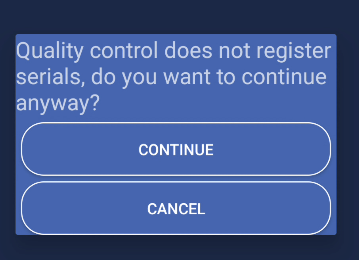
A confirmation dialog appears automatically
Message shows: “Quality control does not register serials, do you want to continue anyway?”
Tap Continue to proceed with verification
Quality Control verifies products but does not register serial numbers
Serial tracking is handled by other modules in the system
Note: When serial products are detected, you can continue with quality control verification. Serial number registration happens in other parts of the system, not in Quality Control.
Continue Verifying Products
After verifying one product:
Search field clears automatically
Scan or enter the next product
Continue until all products are verified
List updates as you verify products
Verified products show as “checked”
Complete Verification
When all products are verified:
The app automatically creates a verification report
In the system the order status updates to “finishedQC”
Verification is logged in the system
You can start a new order
Close Box/Package (If Multiple Boxes)
If the order has multiple boxes and is in Processing status:
Close Package button appears showing box number
Tap “Close Package [number]” when box is complete
App saves box contents to server
Continue with next box if needed
Complete all boxes before finishing order
Change Packaging (If Needed)
If you need to change packaging and the order is in Processing status:
Look above the product list for the packaging name (shows current box/package name)
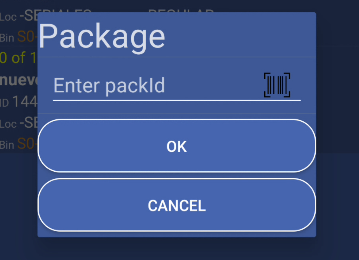
Tap the packaging name to open the change packaging dialog
Enter new Pack ID manually or scan the packaging barcode using the camera icon
Tap OK to save the new packaging
App verifies and updates packaging for the entire order